Return document to customer
Key features
- Two ways to give customers their return documents
- Include the return label and slip directly with the delivery
- Or create and send a return document on demand
Quick guide
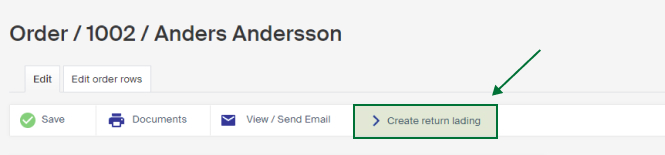
- To send documents on demand, open the order and click Create return lading.
- A PDF with the return slip and label downloads, ready to send to the customer.
There are two ways to configure how customers get their return documents: sent directly with the order on delivery, or sent on demand when the customer contacts you (by post or email).
Return document included with the order
The return label and return slip are sent directly with the delivery. The return label sits beside the shipping label on the three-part, double-sided label paper, so the customer can easily stick it to their package for a possible return. A return slip is on the same document, placed under the delivery note, where they fill in the correct return code before attaching it to their package.
Send on demand
If you've configured documents to be sent when the customer contacts you, open the order (see how to find an order) and click Create return lading.
The Create return lading function works by pointing to a print favorite in nShift that's used when the return shipping slip is created. It therefore works with one return shipping method, regardless of which shipping method is used for the delivery.
A PDF containing the return slip and return label downloads, so you can send it to the customer.