Cancel an order
Key features
- Cancel an order by locking it permanently
- Choose whether to restore inventory when cancelling
- Cancel orders whose delivery has already started
- Notify the customer by email when an order is cancelled
Quick guide
- Open the order you want to cancel.
- Tick Lock Permanently.
- To keep stock counts unchanged, also tick Do Not Restore Stock Counts.
- Click Save.
When you cancel an order, the inventory balance is restored for the products it contained. If you don't want this, for example if an item was defective or missing from the shelf, tick Do Not Restore Stock Counts before you click Save.
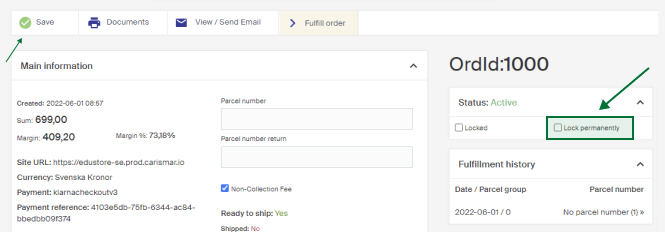
A permanent lock can't be undone. The order stays in the system but is cancelled and locked permanently.
Cancel an order whose delivery has started
If a delivery has started, you can't lock the order permanently from the order view, you'll see the text Save unavailable while order is processed. You need to cancel the delivery first:
- Go to the delivery the order belongs to. From the order view, click the parcel group number in the Fulfillment history box.
- Find the order in the delivery, click Report, then Report order as suspect. This removes the order from the delivery for further investigation.
- The delivery is interrupted. Back in the order view, tick Lock Permanently and click Save.

Notify the customer
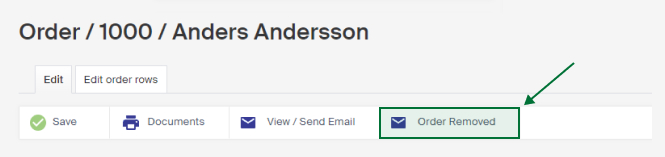
To tell a customer their order is cancelled, send an email directly from the order view using the Order Removed button that appears once an order is permanently locked.
Click the button to preview the email, then click Send mail to send it to the email address on the order.