Managing an order that contains product that's out of stock (Oversellable)
Key features
- Identify orders held in Pending - Unstocked because a product is out of stock
- Deliver the order by updating the product's inventory balance
- Or remove the out-of-stock product and deliver the rest of the order
Quick guide
- Find the held order under Pending - Unstocked (or Not ready - orders) in Warehouse (WMS).
- Either restock the product by updating its inventory balance, or remove it from the order with Edit order rows.
- Click Save. The order moves to Fulfill orders and can be delivered.
When an order comes in that contains products which are out of stock in the normal inventory, it lands under Pending - Unstocked (or Not ready - orders) in the menu under Warehouse (WMS). Inside the order, the product list shows the item as remaining listed.
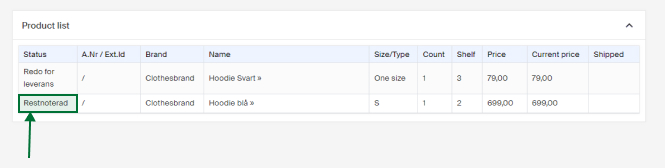
There are two main ways to deliver these orders:
- Update the inventory balance on the product and deliver
- Remove the product from the order and deliver the rest
Update the inventory balance and deliver
If you've received products that were remaining listed and want to deliver the order, update the inventory balance, either directly on the product or via the inventory view.
Directly on the product
Open the product and update the available inventory balance in the In stock field in the product list box.
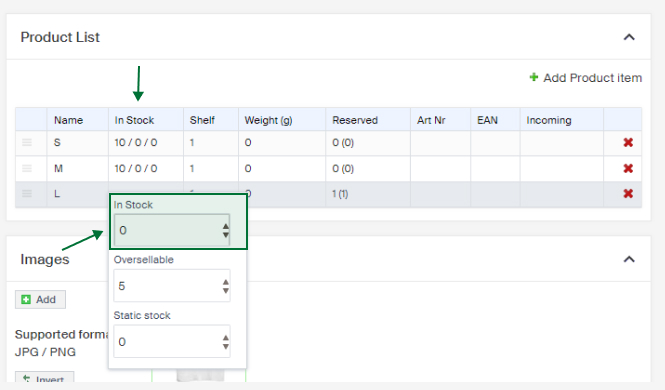
Click Save. The order leaves Pending - Unstocked and appears under Fulfill orders (or deliver orders), ready to deliver, either individually via the Fulfill order button or in a delivery batch.
Via the inventory view
- Go to Inventory under Products (PIM) and search for the product, for example by its ID.
- In the Change field, enter the amount to add, choose a Reason from the dropdown, and click Save.
The inventory balance updates and the order can be delivered.
Remove the product and deliver the rest
If the order contains other products and you want to deliver them without the remaining listed items, open the order and click the Edit order rows tab.

Remove the remaining listed product or products.

Click Save.
You may need to check or update the chosen delivery method, for example if you removed a large product that affects how you want to deliver.
The order leaves Pending - Unstocked and appears under Fulfill orders (or deliver orders), ready to deliver individually via the Fulfill order button or in a delivery batch. In the order confirmation email sent to the customer, the removed product is struck out.
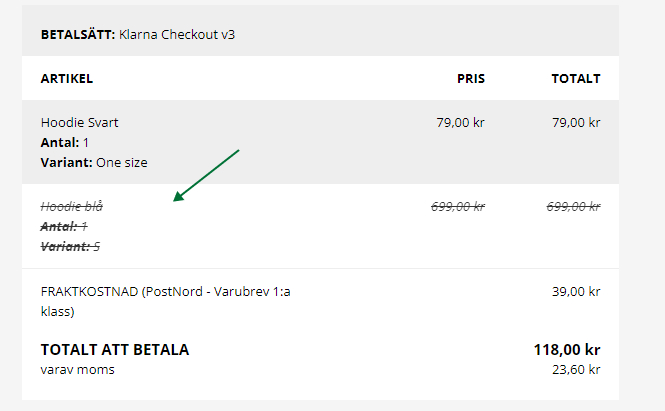
If the order contains only one product that you know won't come back in stock, you need to cancel the order. See how to cancel an order.