Order filter
Key features
- Set up filters to safeguard your shop from fraudulent orders
- Target orders by value, individual, location, payment, shipping, and more
- Review flagged orders in the Pending - Filter section before they ship
Quick guide
- Create a filter and give it a descriptive name.
- Set the parameters you want to match (see the table below).
- Activate the filter.
- Review matching orders under Pending - Filter in the WMS, then handle or permanently lock them.
Filters help keep your store secure by automatically catching orders that match criteria you define, such as specific order values, individuals, or countries associated with fraudulent behavior.
Step 1: Create your filter
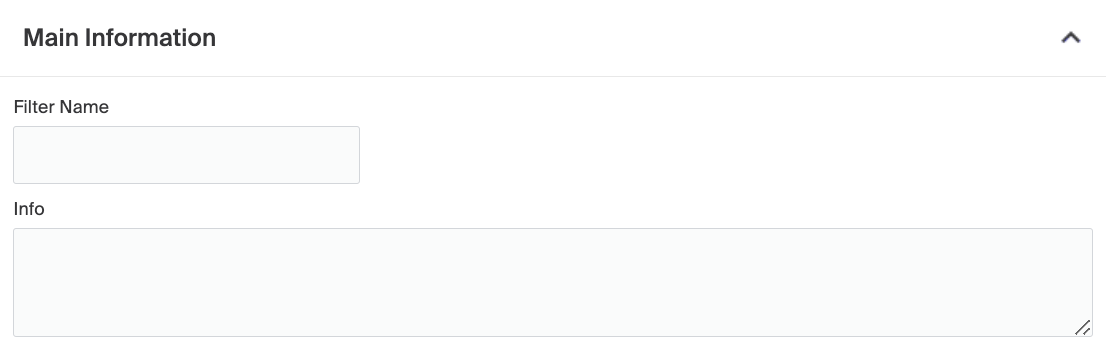
Give your filter a descriptive name and a short note about its purpose, so you can easily identify it later.
Filter parameters
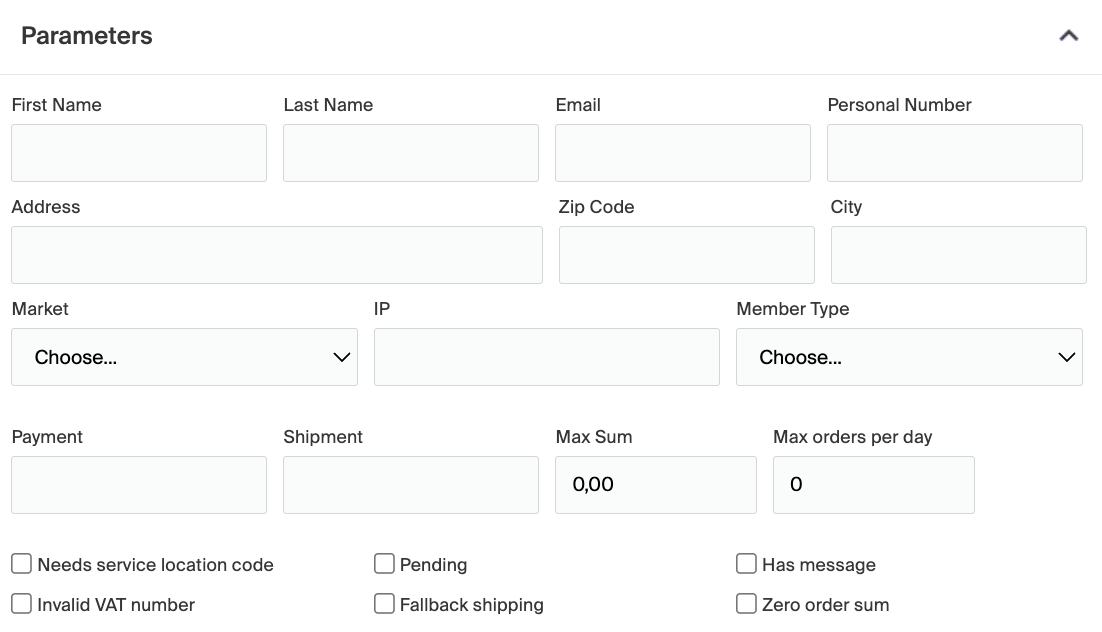
Choose from the following parameters to match orders to your business requirements:
| Parameter | Description |
|---|---|
| First name | First name of a specific customer, for example one who has shown fraudulent behavior. |
| Last name | Last name of a specific customer. |
A specific customer's email address. To block an entire domain, place a * before it, for example *@mail.se catches all orders with an email ending in @mail.se. | |
| Personal number | The personal number (social security number) of a specific customer. |
| Address | Postal address, often a home address, of a specific customer. |
| Zip code | Zip code of a customer, or a whole area if the filter blocks a region. |
| City | City of a customer, or a whole city if the filter blocks it. |
| Market | The market the filter is active on, for example webshop.se or webshop.com. |
| IP | IP address of a specific user. |
| Member type | Target a whole customer group set up under Customer (CRM) > Groups. |
| Payment | Filter on a specific payment method. |
| Shipment | Filter on a specific shipping method. |
| Max sum | Orders above this value end up in Pending - Filter. |
| Max orders per day | Maximum number of orders per day and user. |
| Has message | Whether an order has a message, if a message is configured on the checkout page. |
| Zero order sum | Whether users can place a zero-value order, often used for influencers. |
Once you've set the name and parameters, activate the filter. Your store will then apply the criteria automatically to incoming orders.
Step 2: Test and monitor
After setting up filters, monitor their effectiveness regularly. Review the settings periodically to make sure they match your fraud-prevention goals, and run test orders for various scenarios to confirm the filters work without unintended disruptions.
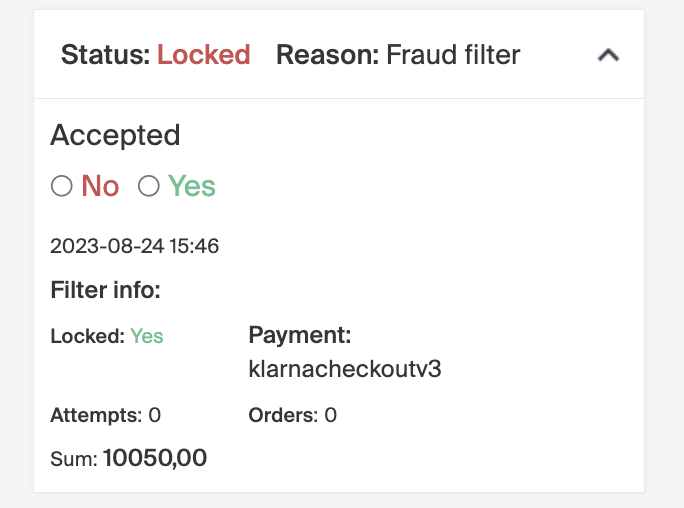
Once a filter is active, orders that meet the criteria appear in the Pending - Filter section in the WMS. You can handle the order as normal or permanently lock it, choose Yes or No.
Managing an order that contains product that's out of stock (Oversellable)
When you work with overselling (oversellable stock), a product with an oversellable balance stays available for sale even when its normal inventory balance is 0.
Paper format for shipping documents
Describes which paper format the shipping documents need to be.