General
Edit order rows
Editing an order depends on its stage and the payment method used. Different payment methods have different limitations to keep in mind.
Key features
- Edit the rows of an existing order
- Add products to an order
- Adjust order totals, with refunds handled to the customer's balance
Quick guide
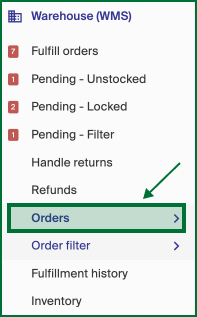
- Open the order: search the order ID, or go to Orders under Warehouse (WMS).
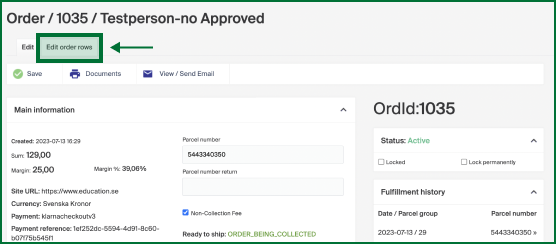
- Click the Edit order rows tab.
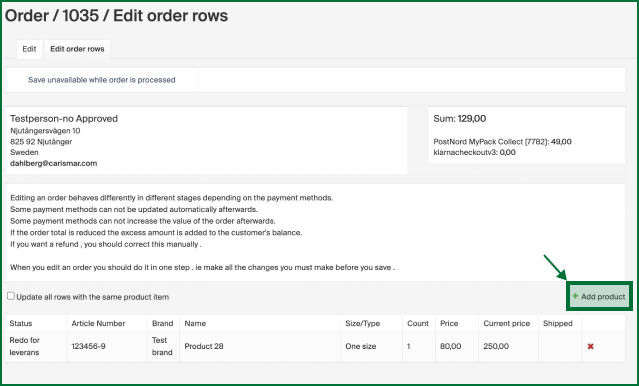
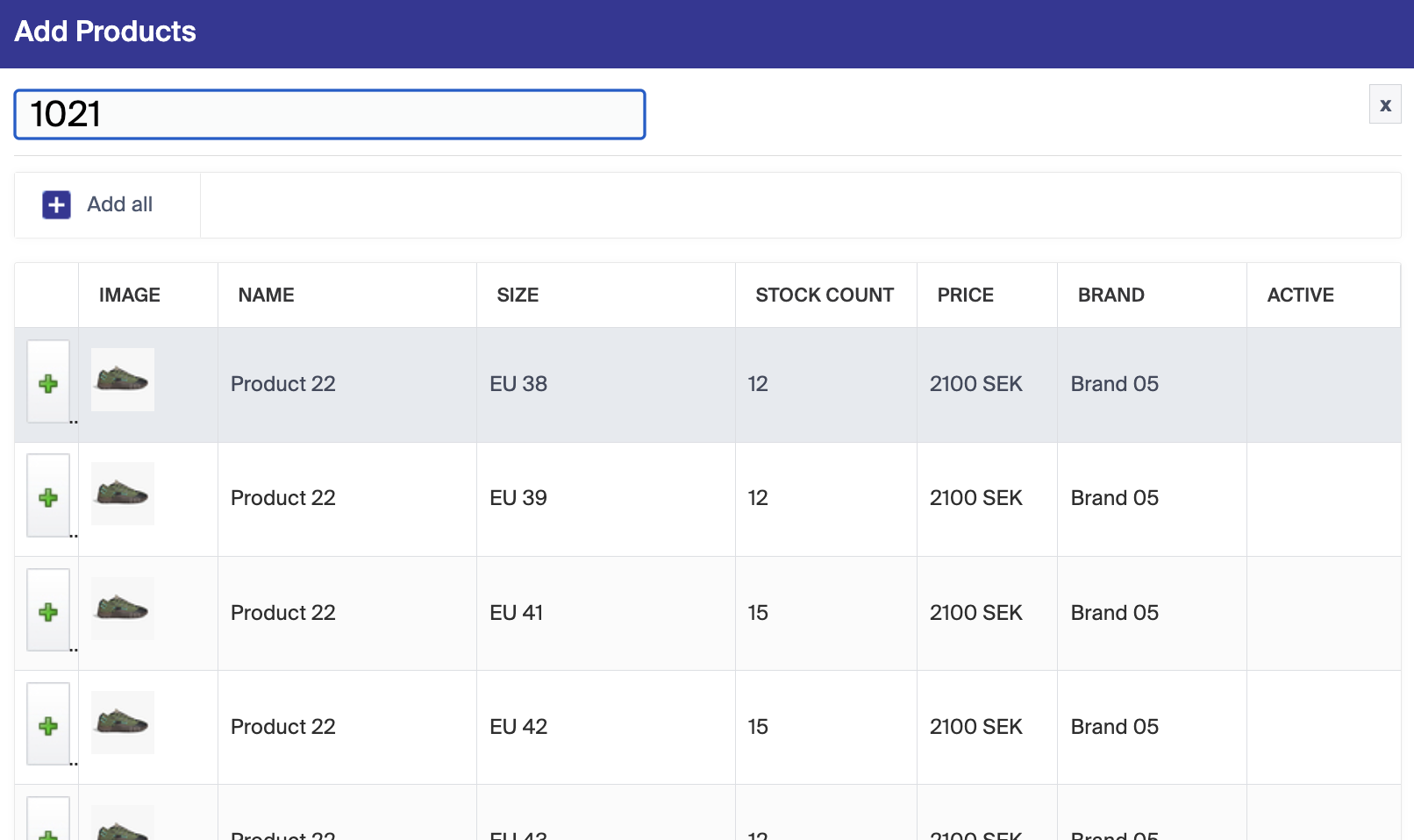
- To add a product, click Add product, search by product ID or name, and press +.
- Review all changes and click Save.
Before you edit
Editing depends on the order's stage and the payment method used. Keep these limitations in mind:
- Payment method limitations — some payment methods don't allow automatic updates after the order is submitted.
- Value modification — some payment methods don't permit increasing the order value after submission. To add items or raise the total, you may need an alternative method or to contact support.
- Reduction in order total — if you reduce the total, the excess is usually added to the customer's balance automatically. Double-check the balance for accuracy.
- Manual refunds — if you're issuing a refund, make the necessary corrections manually during editing before saving.
Edit order rows
Open the order by searching the order ID, or go to Orders under Warehouse (WMS).
Click the Edit order rows tab.
At the bottom you'll see the order's items. To add a product, click Add product.
Search for the product by its internal product ID or name, then press + to add it to the order.
Make all your changes in one go before saving. This keeps the order accurate and prevents missed adjustments later on.