General
Working with the grid
Exploring the Dynamic Grid in Geins Merchant Center
Key features
- Customize how product data is displayed, sorted, filtered, and searched
- Add, remove, and reorder columns to match your workflow
- Filter column data and export the filtered view, or the entire catalog
- Control how many items are shown per page
Quick guide
- Open a view that uses the grid (for example Products).
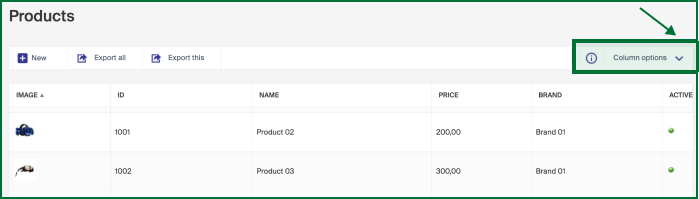
- Use Column Options in the upper right corner to add, remove, or reorder columns.
- Right-click a column to filter the data.
- Export the filtered view with Export, or the full catalog with Export All.
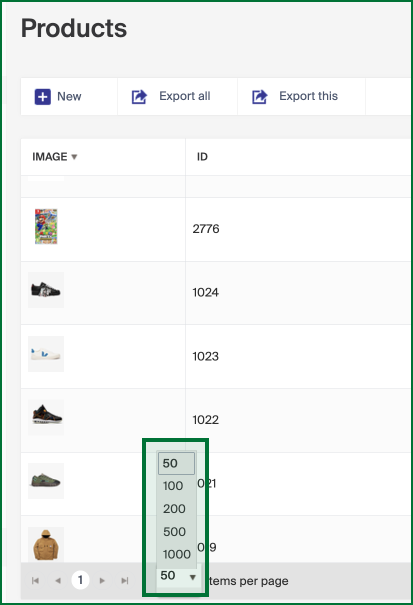
- Use the dropdown in the lower left corner to set how many items are shown per page.
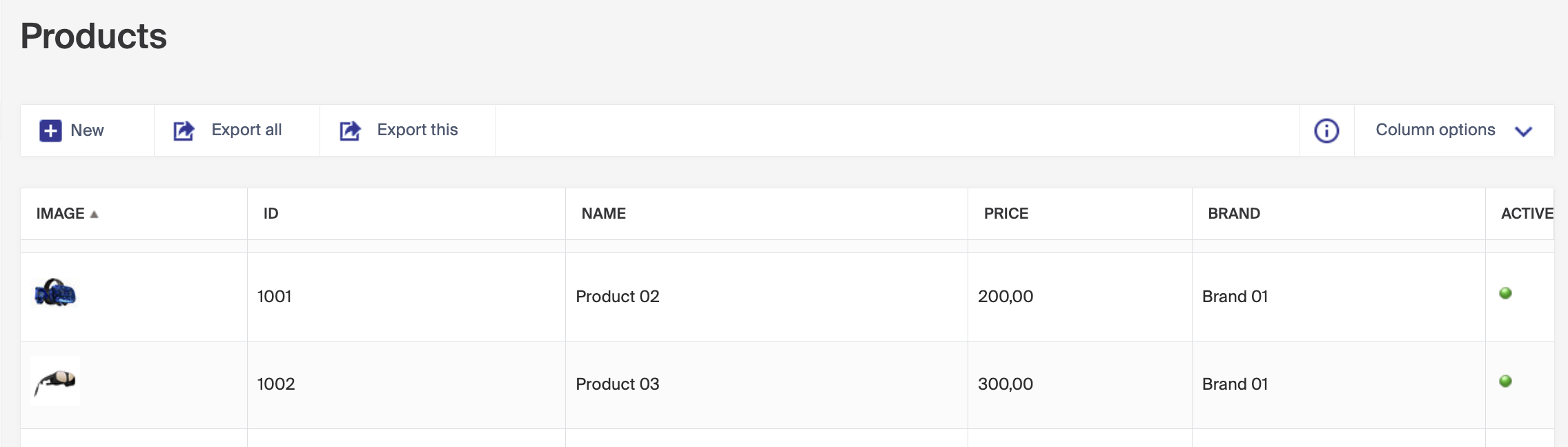
The grid gives you full control over your product data. You can customize how it's displayed, sort, filter, and search, and add or remove columns to suit your workflow.
Customizing columns
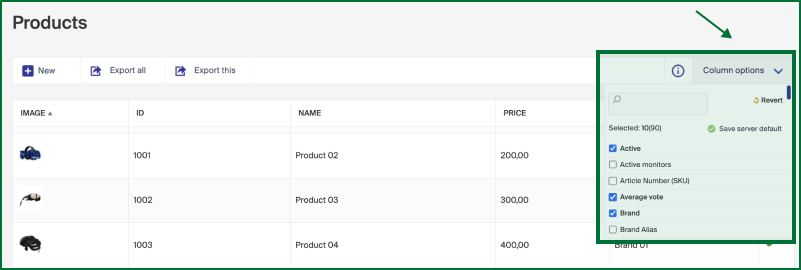
Use the Column Options menu in the upper right corner to tailor the grid to your workflow:
- Add or remove columns.
- Drag and drop columns to reorder them.
Filtering data
- Right-click the column you want to filter.
- The grid instantly updates to show the matching data.
- Click Export to export the filtered view, or Export All to export your entire product catalog.
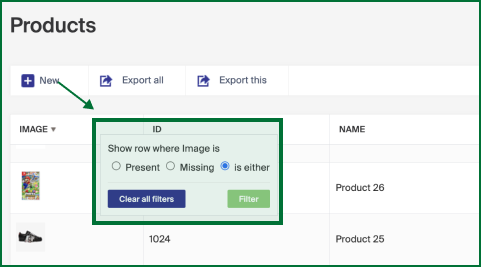
In the example below, a filter on the Image column shows products that have an image, are missing one, or either.
Choosing display preferences
Use the dropdown in the lower left corner of the grid to set how many items are shown per page: 50, 100, 200, 500, or 1000.
Higher values may increase the grid's loading time.