Add content to the product list
Key features
- Add content to product list views, such as category, campaign, or brand pages
- Filter to choose which categories, campaigns, or brands
- Place content above or below the main product list
Quick guide
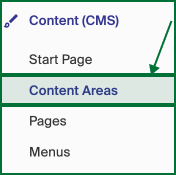
- Go to Content (CMS) > Content Areas.
- Click Create new collection for Productlist.
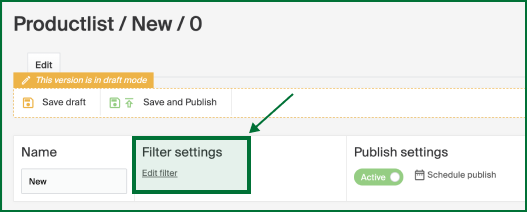
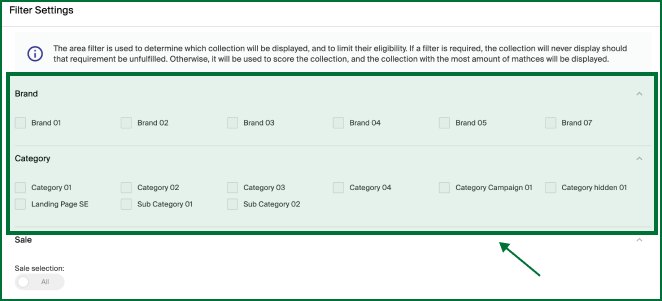
- Use Edit filter to choose categories, campaigns, or brands.
- Drag a block template into the top or bottom area and add widgets.
- Click Save and publish.
Go to Content (CMS) in the left menu and click Content Areas.
You see a list of all your product list content. Edit an existing one, or click Create new collection for Productlist in the upper left corner.
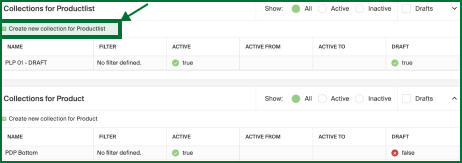
A product list collection is an area filled with content such as category pages, campaign pages, or brand pages. Use the filters to tick the correct categories, campaigns, or brands and generate content around the chosen filters.
To show content on specific categories or brands, click Edit filter.
You get an overview of all categories, brands, and campaigns to populate with relevant content.
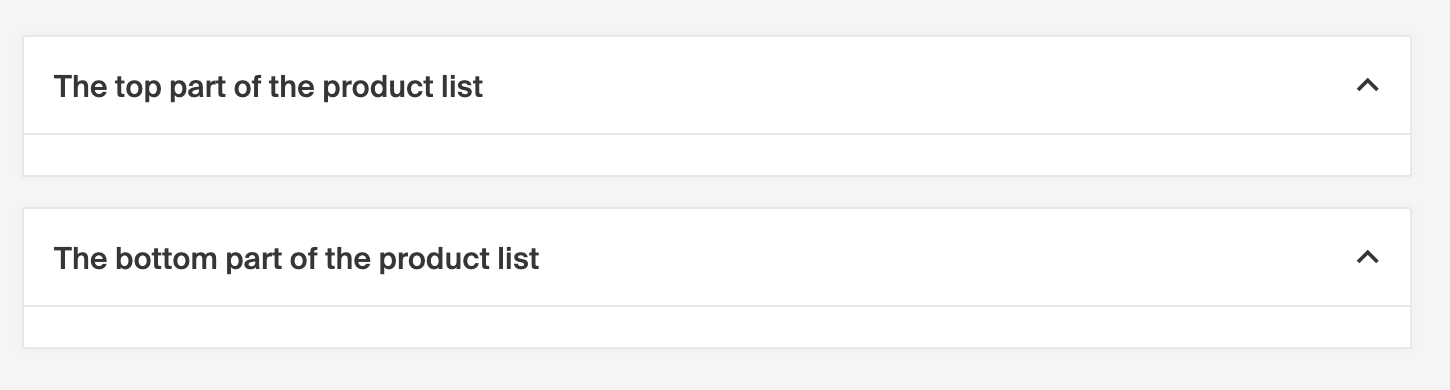
Build the layout with block templates. See Block templates for the available layouts. To add one, drag and drop it into one of two content areas: The top part of the product list (before the main products in the category) or The bottom part of the product list (below them). You can add as many blocks as you want.
For block settings such as name, mobile behavior, display, and design, see Content Blocks settings options. To plan when content goes live, see Scheduling content.
Once the content for the product list page is set up, click Save and publish.