Add content to a product
Key features
- Add content to a specific product's page, or to several products, a category, or a brand
- Filter to choose which products the content appears on
- Content is placed below the product's main information
Quick guide
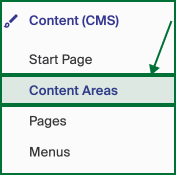
- Go to Content (CMS) > Content Areas.
- Click Create new collection for Product.
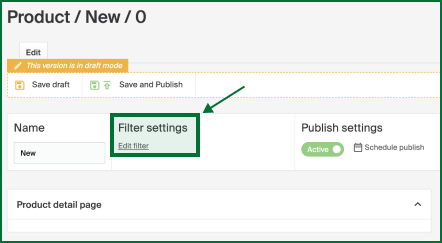
- Use Edit filter to choose the products, categories, or brands.
- Drag a block template into the Product detail page area and add widgets.
- Click Save and publish.
Go to Content (CMS) in the left menu and click Content Areas.
You see a list of all your product content. Edit an existing one, or click Create new collection for Product.
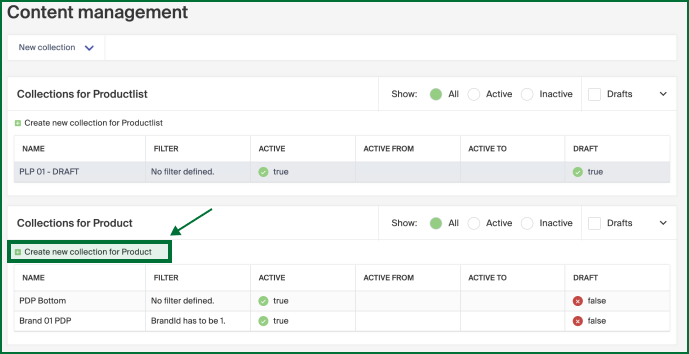
A product collection is an area filled with content on a specific product's PDP or several products. You can also enrich the PDPs of a whole category or brand. Use the filters to search for products and generate content around the chosen filters.
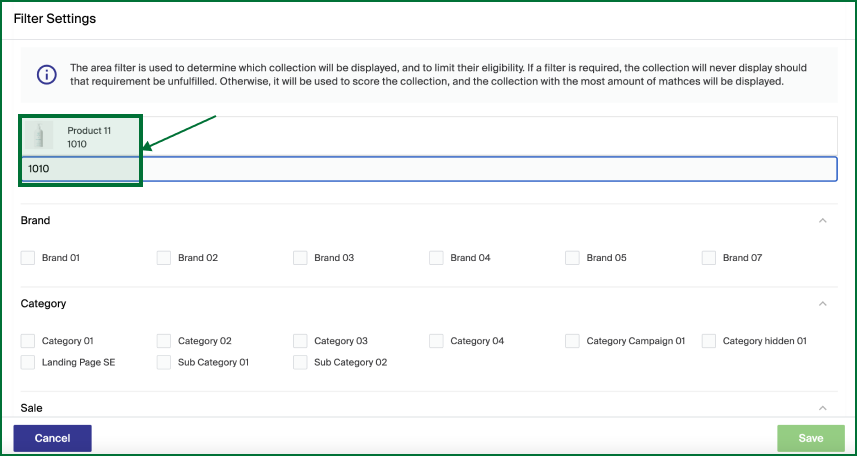
To show content on specific products, click Edit filter.
You get an overview of all categories, brands, and campaigns, and can search for specific products by name or product ID. Click the products you want to create content around.
Build the layout with block templates. See Block templates for the available layouts. To add one, drag and drop it into the Product detail page content area. The content is placed below the product's main information.

For block settings such as name, mobile behavior, display, and design, see Content Blocks settings options. To plan when content goes live, see Scheduling content.
Once the content for the product's PDP is set up, click Save and publish.