Create promo codes (discount codes)
Key features
- Create discount codes customers enter at checkout
- Enter a code manually or generate one automatically
- Choose from several campaign types, such as percentage, fixed amount, or free shipping
- Limit use per customer or set a total usage limit
- Make codes customer or group exclusive
Quick guide
- Go to Products (PIM) > Campaigns and click Create Campaign.
- Enter or generate a Promotion code.
- Select a campaign type.
- Set the product selection and settings.
- Set the date and time, then click Save Campaign.
Go to Products (PIM) > Campaigns and click Create Campaign.
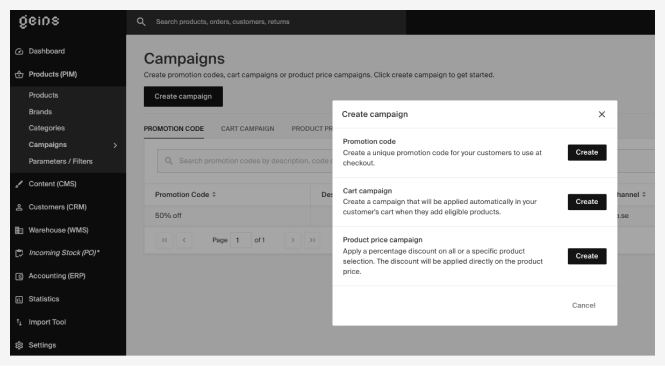
Step 1 - Promotion code
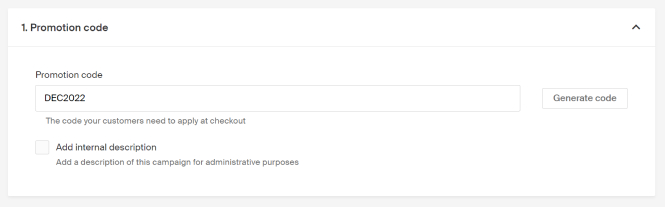
Enter your code in the Promotion Code field, or use Generate Code to create one automatically.
Avoid using these characters: /, \, #, ?.
Optionally, add an Internal Description for administrative use.
Step 2 - Type
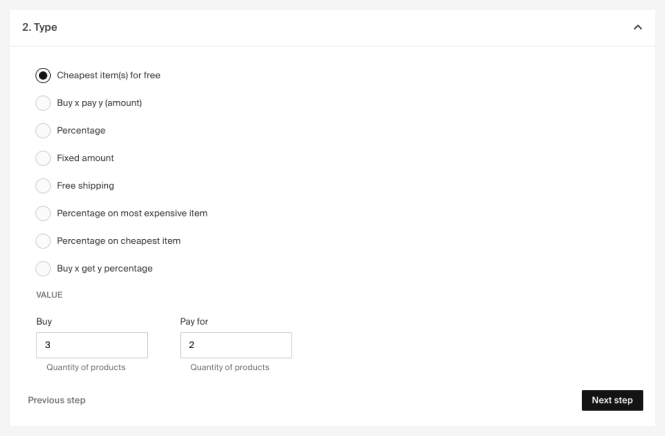
Select the campaign type. These campaigns apply when the customer enters the discount code at checkout.
| Type | Description |
|---|---|
| Cheapest item(s) for free | E.g. 3 for 2, where the cheapest item is set to 0. |
| Buy x pay y (amount) | E.g. 5 for 100, the discount is distributed across the products. |
| Percentage | % discount on the entire order, e.g. 20%. Choose to apply the discount on Selling price or Price. |
| Fixed amount | Fixed amount deducted from the order's total amount. |
| Free shipping | Free shipping on the order. Also available as a setting with other campaign types. |
| Percentage on most expensive item | % discount on the order's most expensive item. |
| Percentage on cheapest item | % discount on the order's cheapest item. |
Step 3 - Product selection
Set which part of the assortment is included in the campaign. Click Browse under Include Selection.
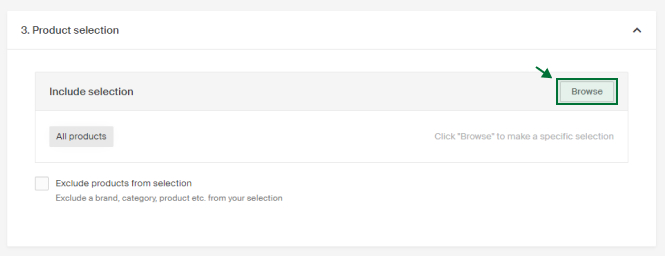
| Selection type | Description |
|---|---|
| Category | Include all products in one or more categories. |
| Brand | Include all products from one or more brands. |
| Product | Select products manually from the list. |
| Product price | Include products based on price conditions, for example products over 500kr. |
Click Save selection when done. You can update the selection at any time.
Exclude products
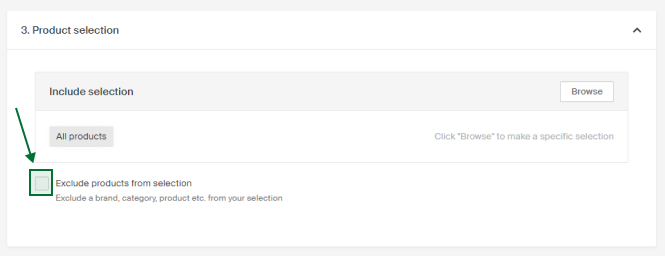
To exclude specific products from the selection, for example a campaign on all jackets except brand X and Y, click Exclude products from selection and choose which products to exclude (using the same method as the include selection).
Step 4 - Settings
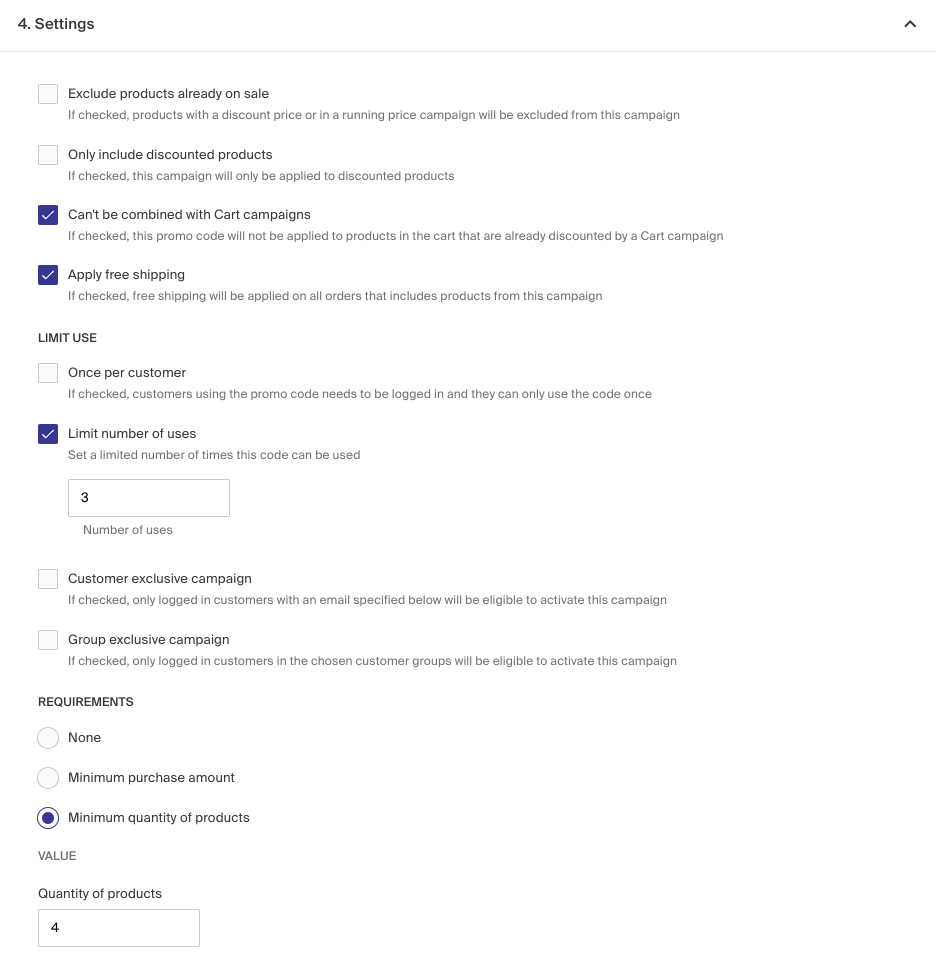
| Setting | Description |
|---|---|
| Exclude products already on sale | Products with discounted prices are excluded from the campaign (discount price on the product view, or included in a product price campaign). |
| Only include discounted products | The campaign applies only to products with discounted prices (a discount price or included in a product price campaign). |
Only include discounted products has three sub-options:
| Option | Description |
|---|---|
| All discounted products | Applies to all discounted products. |
| Only products with discount price | Applies only to products with a set discount price. |
| Only products with campaign price | Applies only to products included in a product price campaign. |
Limit use
| Option | Description |
|---|---|
| Once per customer | The customer must be logged in, and can use the code only once. |
| Limit number of uses | Set a limit on how many times the code can be used. |
Exclusive campaigns
| Option | Description |
|---|---|
| Customer exclusive campaign | Makes the campaign available to specific customers by email address. Customers must be logged in. |
| Group exclusive campaign | Directs the campaign to specific customer groups created in Customers (CRM). Customers must be logged in. |
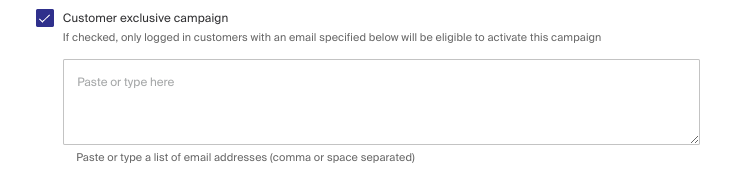
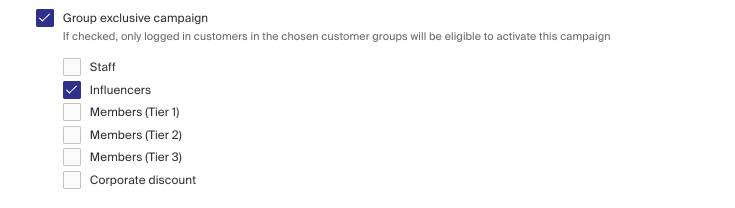
To find out how to create customer groups, see Create customer group. To find out how to add customers to a customer group, see Place customer in customer group.
Requirements
| Setting | Description |
|---|---|
| Minimum purchase amount | The minimum cart total required for the campaign to apply, for example 500kr. |
| Base amount on | Whether the required amount is calculated before or after other discounts and campaigns are applied to the cart total. |
| Minimum quantity of products | The minimum number of products required in the order for the code to apply. |
Step 5 - Date & time
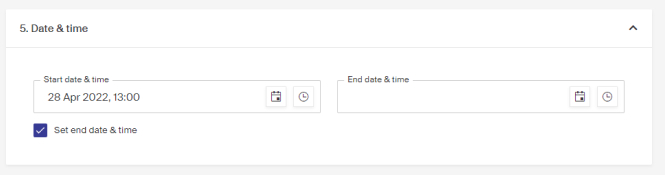
Set a start date and time.
Optionally, set an end date and time by enabling Set end date & time.
Click Save Campaign when done. If set to start immediately, it activates in the store within 5 minutes.
Create a Product price campaign (price campaign)
Create a product price campaign to give included products a reduced price, shown directly in the store as a sale price.
Example of using priority for customer and group exclusive campaigns
An example of how to manage priority when setting up customer and group exclusive cart-based campaigns.