Customer Groups
Place customer in customer group
Place customers in a customer group, either one at a time from the customer view or in bulk via the import tool.
Key features
- Place a customer in a group one at a time from the customer view
- Add many customers to a group at once using the import tool
- Match customers to a group by customer Id and customer group Id
Quick guide
- Open the customer view for the customer.
- In the Customer group field, choose the group.
- Click Save.
On the customer view
- Go to the customer view for the customer you want to place in a group.
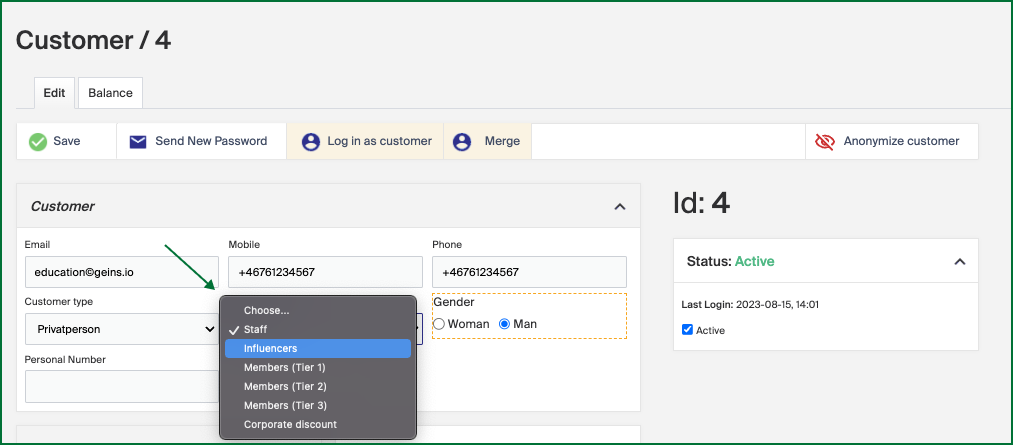
- In the Customer group field, choose the group you want the customer to be in. The field lists all created customer groups.
- Click Save.
Via the import tool
To add several customers to a group at once, use the import tool. Merchant Center provides an import template we recommend you use.
To download the template:
- In Merchant Center, go to Import tool in the left menu and click New.
- Choose template type: Customer/Member (Beta).
- Click Download file template.
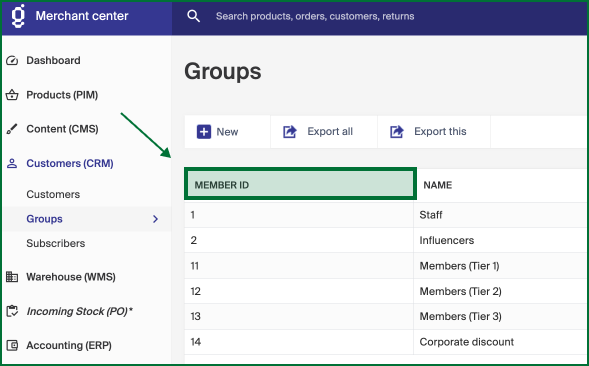
Fill in at least the Id column to match a customer, and the Customer Group column with the Id of the customer group. The group Id is shown in the Member ID column in the groups list.
To run the import:
- In Merchant Center, go to Import Tool in the left menu and click New.
- Choose the file you want to import.
- Choose template type: Customer/Member (Beta).
- Make sure the Id field and Customer group field have matches.
- Click Start import.
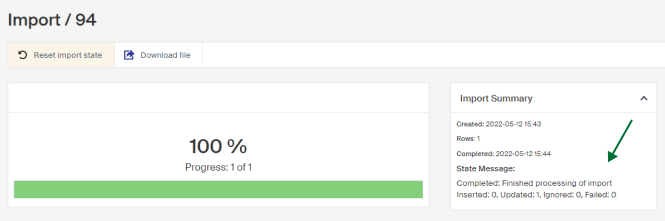
When the import is done, the result is shown on the right so you can confirm the rows were imported correctly.