Working with product variants in the import tool
Key features
- Create and manage variant groups via import
- Group products by a shared group key
- Update multiple dimensions, or remove a product from a group
Quick guide
- Go to the Import Tool in the menu and click New.
- In the Template Type dropdown, select Variant.
- Click Download File Template, fill it in, and upload it to apply the changes.
This requires that you have existing variant types configured. For a description of all columns in the variants template, see Import template for product variants.
GroupKey
GroupKey is the unique identifier that groups products together as a variant group. Products with the same key are connected to the same group. A product can only be part of one group; if a product is in an existing group and you specify a different key, it is removed from the first group.
Create a variants group
The example below creates a variants group with one dimension:
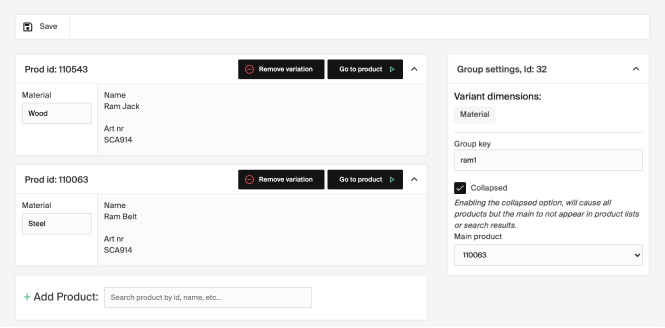
- Two products are grouped under the group key
ram1with the dimension Material set. - The group is collapsed, and the product with id 110063 is set as the main product.

Once a group is created, you cannot add new dimensions to it. To make changes, you must remove all products and create a new group.
The variants view in Merchant Center after import:
Update multiple dimensions
All dimensions and values must be included when updating a product in a variants group.
- List multiple dimensions and their values in a single row, separated by commas.
- Ensure the values match the dimensions in the same comma-separated order.

In the example above:
- Product id 31 has Shape: Rectangle and Type: Hang.
- Product 210 has Shape: Square and Type: Stand.
List the values in the same comma-separated order as the dimensions to avoid errors.
Remove a product from a variants group
Enter the productId, groupKey, and the value remove in the remove column for the product you want to remove.
