Work With Imports

Import products

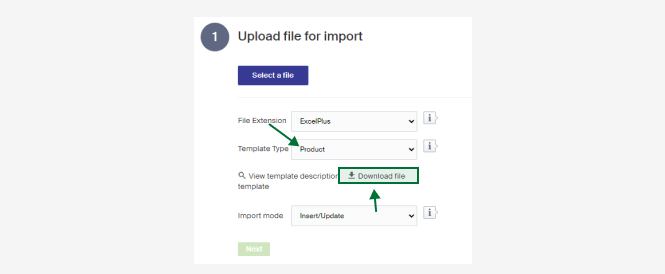
To download the import template for products, navigate to the Import tool in the menu. Click on "New" and then select "Product" from the Template type drop-down.

To download the import template for products, navigate to the Import tool in the menu. Click on "New" and then select "Product" from the Template type drop-down. Finally, click on "Download file template".

Below follows a description of existing columns. (There's also a short description in Merchant Center under View template description)

ColumnDescription
IdThe products Id. The Id that the product has in Merchant Center.
NameThe products name. Can be left empty if the Id is there but needs to be filled in, if the column Id is empty.
Article numberArticle number, applies to the field Article Number (SKU) in on the product view.
PriceThe products price (in the default currency if value in Currency colum is missing)
SalePriceThe products sale price (in the default currency if value in Currency colum is missing)
CurrencyThe currency of the price you want to add/update in the Price or SalePrice colum
InPriceThe products purchase price
InPriceCurrencyCurrency for purchase price (shortening will be written in), SEK is set if left empty
Text1Product text, field Text 1 on the product view where the text is used in the store can be different depending on the stores design and how it's built up (earlier tech text)
Text 2Product text, field Text 2 on the product view where the text is used in the store can be different depending on the stores design and how it's built up (earlier short text)
Text 3Product text, field Text 1 on the product view where the text is used in the store can be different depending on the stores design and how it's built up (earlier long text)
BrandThe products brand. The brand must be laid out in Merchant Center.
CategoryMain category. The main category is what the products URL will be based on as breadcrumbs on the product page in the store that will be built with. A product must have one main category to be visible in the shop.
AdditionalCategory1Additional category. Makes it possible to add products to more categories. Does not need to be a under category to the main category.
AdditionalCategory2Additional category. Makes it possible to add products to more categories. Does not need to be a under category to the main category.
AdditionalCategory3Additional category. Makes it possible to add products to more categories. Does not need to be a under category to the main category.
MetaTitleMeta title for the product
MetaDescriptionMeta description for the product
MetaKeywordsMeta keywords for the product
ActiveSet if the product is active or not. Give the value TRUE for active, False for inactive. If left empty the product will be set as active.
ExternalIdExternal Id. Applies to the field external id on the product view. It's good to think about this because it's an additional identifier for matching of names. Then both name + External Id must be unique
MarketsId's for the markets the product shall be sold in. Write as a comma separated list (1,2,3,4 and so on). If left empty then the product is set as available on market Id 1 as default.
WeightThe products weight
HeightThe products height
WidthThe products width
LengthThe products length
SizeProduct name (size/model) on a product item. A new article will be created if the name is not found or if the product is new. A standard name will be used if it's left unspecified
OldSizeProduct articles (Size/model) old name. If this is provided then the product articles matching this name will have their name changed to the value in the column Size.
StockInventory balance. Requires that the field Size, Name and Id are filled in.
OversellableStockOversellable inventory balance. Requires that the field Size, Name and Id are filled in.
StaticStockStatic inventory balance. Requires that the field Size, Name and Id are filled in.
StockThresholdThe number of which
SizeExternalIdExternal Id on size/model level. Requires that the field Size, Name and Id are filled in.
SizeArticleNumberArt nr on size/model. Requires that the field Size, Name and Id are filled in
ShelfShelf place. Requires that the field Size, Name and Id are filled in
GroupNameFor product relations, name on the relation type that the product shall belong to.
GroupKeyIdentifier for a product relations-group (any number). Products with the same number in the import will become related products.
GS1EANNumberGS1-number(EAN-number) on the size/model level. Requires that the fields Size, Name and Id are filled in.
ItemWeightWeight on size/model level. Requires that the fields Size, Name and Id are filled in.
ItemHeightHeight on size/model level. Requires that the fields Size, Name and Id are filled in.
ItemWidthWidth on size/model level. Requires that the fields Size, Name and Id are filled in.
ItemLengthLength on size/model level. Requires that the fields Size, Name and Id are filled in.
MaxPercentNumber for the max percentage discount a product should have set (70% for example). Applies to the field Max Discount (%) on the product view.
SupplierName of the supplier
LanguageIdLanguage Id, is used for translations. Id for the language fills in if you want to add translations on the different fields like text1, text2 and text3. Leave empty for default language.
IntrastatCodeIntrastat Code
CountryOfOriginThe products country of origin. Either country name or country code.
ProductClassificationIdId for the classification the product shall belong to.
ProductGuideIdsId for the product guides the product shall belong to. (Comma separated list 1,2,3,4 and so on)
FreightClassName

When you have filled in the fields of information which you wish the product to include in the import next choose Import mode.

-** Insert/Update:** Creates or updates existing products matching either id or name.

-** Insert/Create new:** Creates new products where id does not exist, regardless of name. Never updates existing products.

-** Insert/Ignore existing:** Creates new products where neither id or name exists. Never updates.

When you have chosen your** Import mode press Next.**

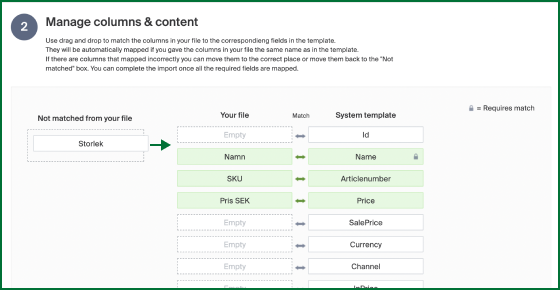
Once you clicked Next you are able to match the columns to each post. In this example the column Storlek (Size) needs to be dragged and matched to the Size column. If the columns in your import file is the same as the system template it will be automatically placed correctly.

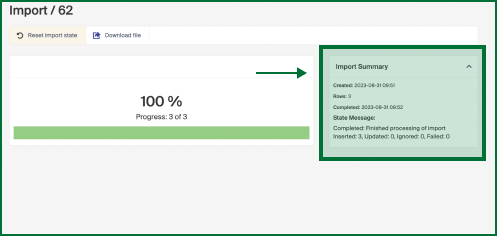
When your import is finished you'll get a summary. If all products were imported correctly it will say either Inserted or Updated. If something went wrong it will say how many products which were Ignored or Failed.

** General guideline:** When importing a large number of products, it is always recommended to start with one product to ensure that all the information is correctly aligned. This will help ensure that everything is in the right place during the import process.