Work With Imports
Update inventory stock
Update the inventory balance on products in a batch with the product import.
Key features
- Update inventory balance on products in a batch
- Update regular, oversellable, or static stock
- Uses the product import with the Insert/Update mode
Quick guide
- Prepare a file with the columns Id, Name, Size, and Stock.
- Go to Import Tool > New and choose your file.
- Set template type Product and import mode Insert/Update.
- Map the columns and click Start import.
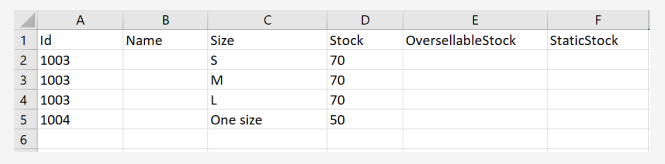
With the import tool you can update the inventory balance on products in a batch, using the product import. The columns to map are Id, Name, Size, and Stock. For oversellable or static stock, fill in the OversellableStock and StaticStock columns.
| Column | Description |
|---|---|
| Id | The product's Id in the system. |
| Name | Name of the product. Can be left empty if it has an Id. |
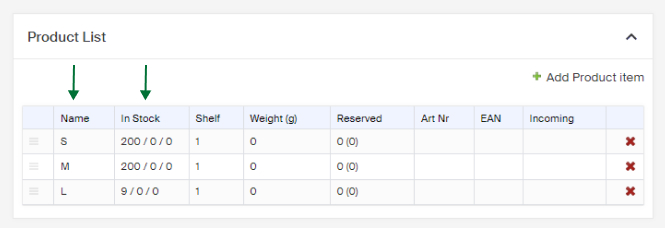
| Size | Name of the size/model (the field name in the product list inside the product view). A new size/model is created if the value isn't already available. Spell the size/model name exactly, for example "One size" written consistently, since "one size" would create a separate size/model. |
| Stock | The amount to update the inventory balance to. |
| OversellableStock | The amount to update your oversellable inventory to. |
| StaticStock | The amount to update your static inventory to. |
Example of an import file based on the product import template with correctly filled in fields:
When your file is done
- Go to Import Tool in the menu and click New.
- Choose the file you want to import.
- Choose the file type in the File extension dropdown.
- Choose template type Product.
- Choose import mode Insert/update.
- Click Next and ensure the columns named above are mapped to the system columns.
- Click Start import.
When the import is done, the products' inventory balance is updated. You can see it on the product, in the In Stock column in the Product list box.