Update prices using the import tool
Key features
- Update regular price (Price), sale price (SalePrice), and purchase price (InPrice) in batches
- Set prices per currency and per sales channel
- Uses the product import with the Insert/Update mode
Quick guide
- Prepare a file based on the product import template with the price columns.
- Go to Import Tool > New and choose your file.
- Set template type Product and import mode Insert/Update.
- Map the columns and click Start import.
In the product import you can set or update the regular price (Price), sale price (SalePrice), and purchase price (InPrice). If you work with multiple currencies or sales channels, you can update prices differently for each.
| Column | Description |
|---|---|
| Price | Product price (in the default currency if the Currency column is not specified). Should not be mapped if empty. |
| SalePrice | The product's sale price (in the default currency if the Currency column is not specified). |
| InPrice | The product's purchase price. |
| Currency | The currency of the price you want to update. |
| Channel | Which sales channel the price applies to (for example, site.se, site.com). Price is set for the default sales channel if empty. When working with multiple channels and currencies, always set a value in both the Currency and Channel columns. |
Example import files
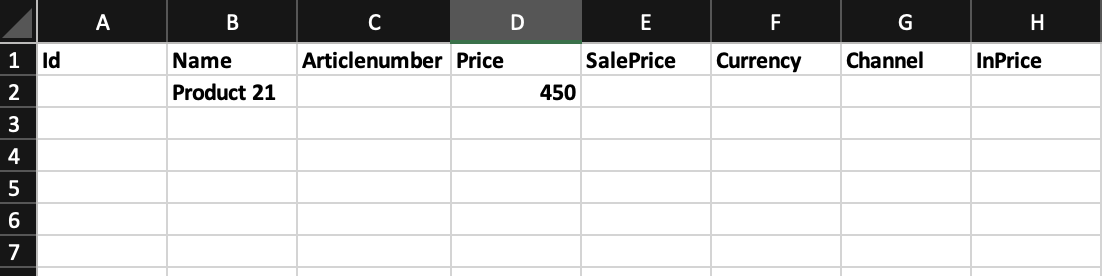
Price set in the default currency on the default sales channel:
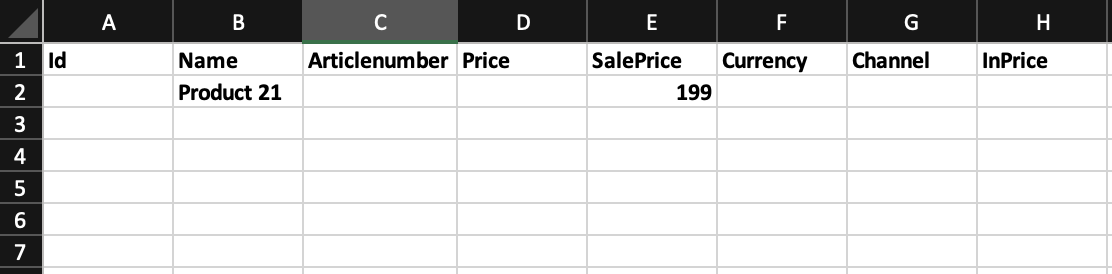
Sale price updated in the product's default currency (do not map the Price field if it's empty):
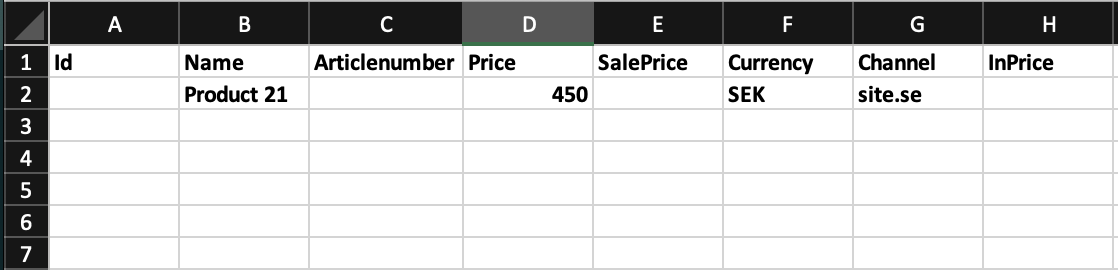
Price set for a specific sales channel and currency:
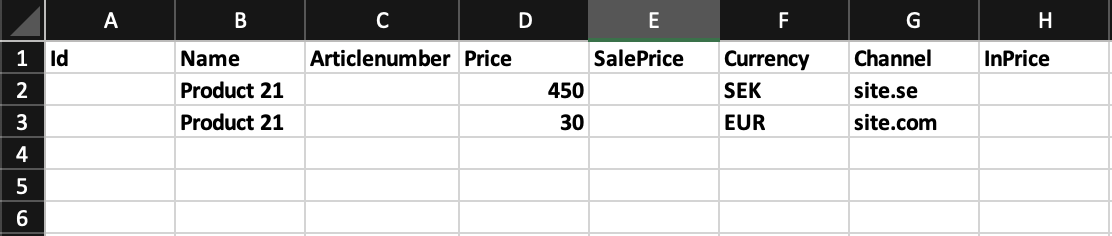
Price set for two different sales channels with two different currencies:
When your file is ready
- Click Import Tool in the menu and click New.
- Choose the file you want to import.
- Select the file type in the File extension dropdown.
- Choose template type Product.
- Choose import mode Insert/Update.
- Click Next and ensure the columns mentioned above are mapped to the system columns.
- Click Start import.
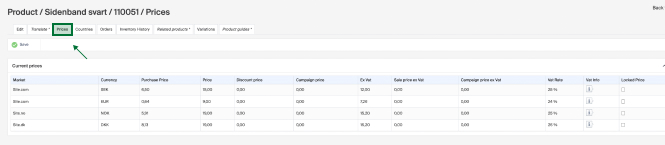
When the import is complete, the product prices are updated. Verify this on a product by checking the price fields, or under the Prices tab.
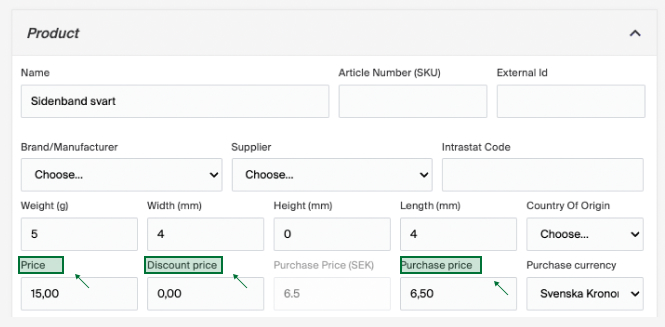
In the product view, Price corresponds to the Price column in the import template, Discount price to SalePrice, and Purchase price to InPrice.