How the import tool works
Key features
- Create or update data in batches
- Start from a complete import template, or use your own file
- Map your file's columns to the system fields
- See a summary when the import completes
Quick guide
- Go to Import tool in the menu and click New.
- Choose a Template type and download the template, or upload your own file.
- Set the File Extension and template type, then click Next.
- Map the columns and click Start Import.
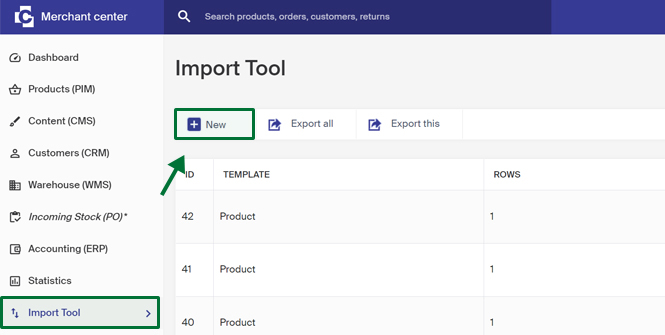
Click Import tool in the menu, then New to create a new import. If you want to start from an import template, you do that in the next step.
In the next step you upload the file you want to import. The available import templates are also here.
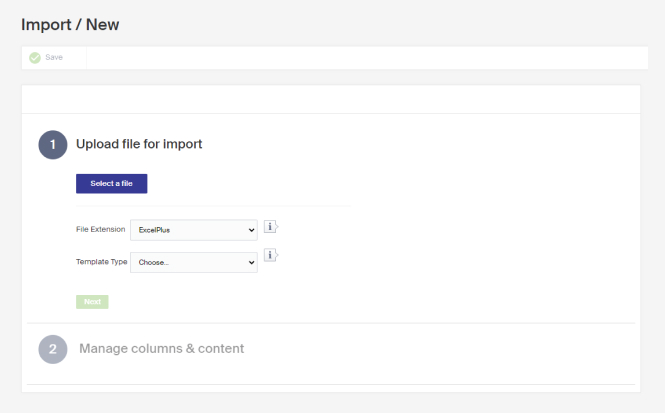
Download an import template
To download an import template, choose the type of import in the Template type dropdown. See the separate articles for a thorough description of each template. The available templates are:
| Template | Description |
|---|---|
| Category | Create new categories or update existing ones. |
| Customer / member (Beta) | Update data on existing customers, such as placing a customer in a customer group. Can also create new customers. |
| Google Product Taxonomy | Map existing categories against the Google taxonomy categories. |
| Price list | Read in a price list with product prices for specific customer groups, for quantity discount prices. Requires customer groups in the system. |
| Product | Create or update products. |
| Product Images | Import product pictures to existing products. Requires the pictures to be available via a URL. |
| Product parameters | Enrich existing products with parameter values and attributes from existing parameter groups. |
| Purchase | Create purchase orders via the import tool. |
| URL history | Manage reassignment of old URLs. Used primarily when changing from another platform. |
When you have chosen the template type, click Download file template.
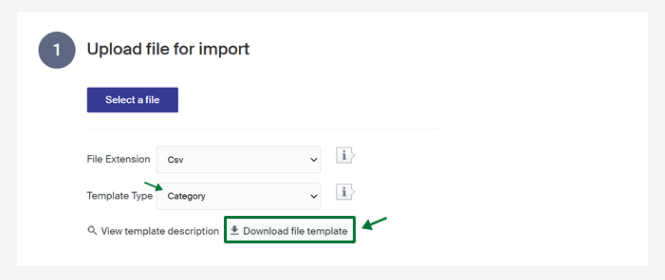
The file is downloaded and can be completed for import. You can also work with a file that isn't based on any existing template, then map your columns in the next step.
Upload the file
When your file is ready, click Select file and choose it. Set the file type in the File Extension dropdown, choose the template type, and click Next.
| File Extension | Description |
|---|---|
| ExcelPlus | Files of filetype .xlsx |
| Excel | Files of filetype .xls |
| Csv | Files of filetype .csv |
Map the fields
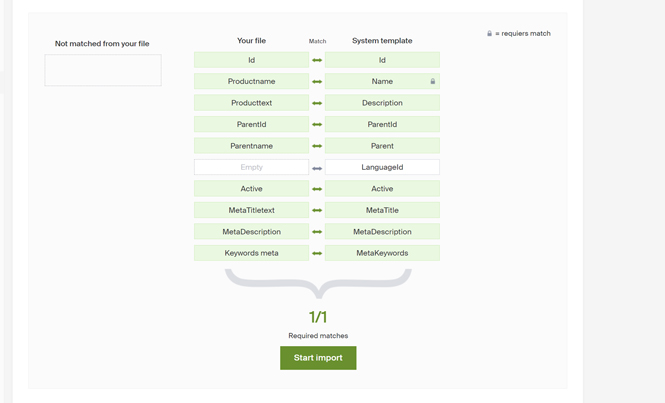
Map the fields in your file against the system. Fields with padlock icons are mandatory and must be matched for the import to work. If you use an import template, all fields are matched automatically. Below is an example of a category import with the template where all fields are matched.
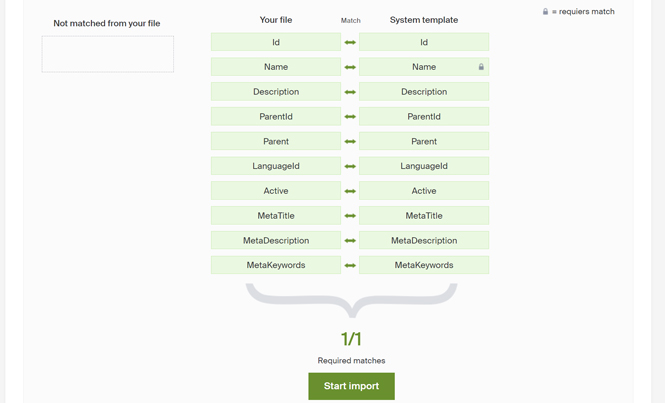
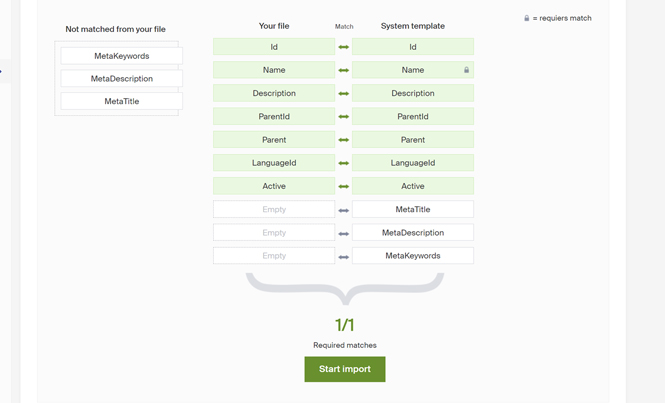
To exclude fields from the import, remove them. The picture below shows an import where metaTitle, MetaDescription, and MetaKeywords have been excluded. To remove a field, drag it from under your file and drop it in the box under Not matched from your file.
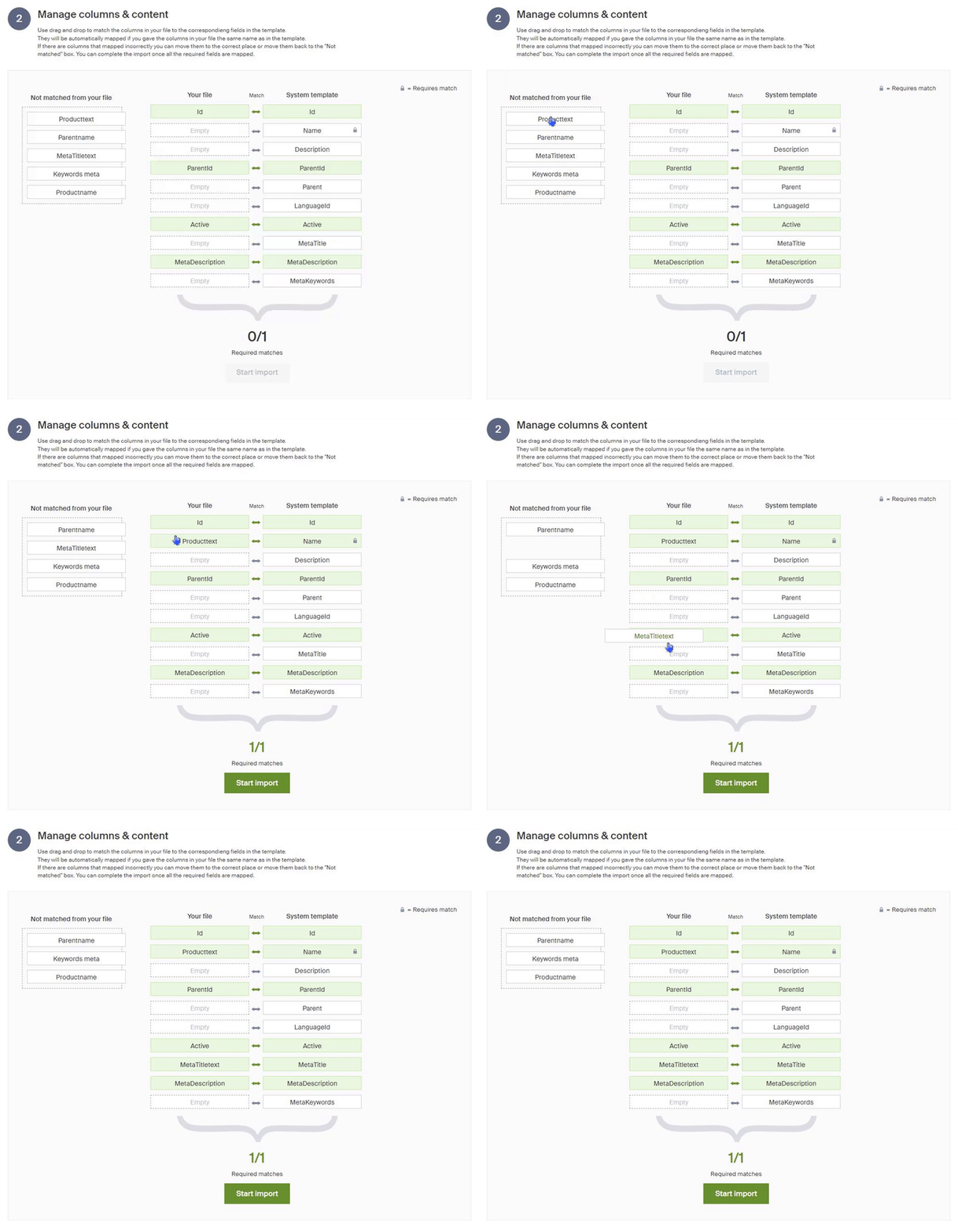
If your file isn't based on an existing template, the columns may be named differently and you need to match them yourself by dragging the names from Not matched from your file to the field you want to match.
After matching the fields (all required fields must be matched), click Start Import.
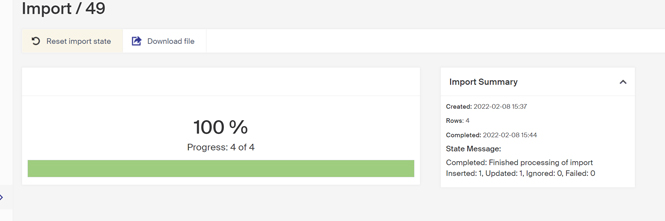
The import is complete when it says 100%. The column on the right shows a summary of the import.
Create or update categories via import tool
Create or update categories in batches with the import tool, using the category import template or your own file.
How to add a new product with multiple sizes via the import tool
Create a new product with the import tool, with a single item or with multiple sizes.