Import Templates
Import template for product variants
Create variants of a product with the import template. Requires existing variant types configured.
Key features
- Create or change product variants via import
- Connect products into a variant group by a shared group key
- Set collapsed state and a main product for a group
Quick guide
- Go to the Import Tool in the menu and click New.
- In the Template Type dropdown, select Variant.
- Click Download File Template.
This requires that you have existing variant types configured. Use the template to create or change variants, then upload your file to apply the changes.
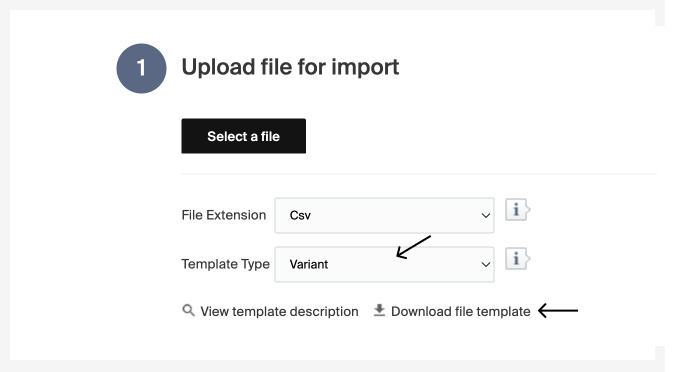
A description of the columns follows. There is also a short description in Merchant Center under View template description.
| Column | Description |
|---|---|
| ProductId | Id of the product. |
| GroupKey | Unique identifier for the group. Can be text or numbers. Products with the same key are connected to the same variant group. A product can only be part of one group; if a product already exists in a group and you specify a different key, it is removed from the first group. Located under group settings in the variants tab in Merchant Center on existing groups. |
| Dimensions | The variation dimension names. A comma-separated list of the dimensions for the variant group (example: color,material). Only matches existing dimensions in a variant group; cannot add new dimensions to an existing group. All dimensions in the group must be specified. |
| Values | The variant dimension values. A comma-separated list of the dimension values for this variant, in the same order as the dimensions (example: red,wood). |
| Collapsed | Value: True / False. True sets the variation group as collapsed if applied to any product in the group. False removes the collapsed state, so all products in the group show in product lists. Requires a value in GroupKey. |
| MainProduct | Value: True. Sets the product as the main product if the group is collapsed. Overrides an existing main product. Requires a value in GroupKey. |
| Remove | Value: Remove. If set, the product is removed as a variation. Requires a value in GroupKey. |