Import parameters
Key features
- Apply parameters and parameter values to products via import
- Requires parameter groups and their parameters to be created first
Quick guide
- Go to the Import Tool in the menu and click New.
- In the Template type dropdown, select Product Parameters.
- Click Download file template.
This requires that you have created parameter groups and their parameters beforehand. See Create parameters and parameter groups.
Download the import template by going to the Import Tool in the menu, clicking New, choosing Product Parameters in the Template type dropdown, and clicking Download file template.
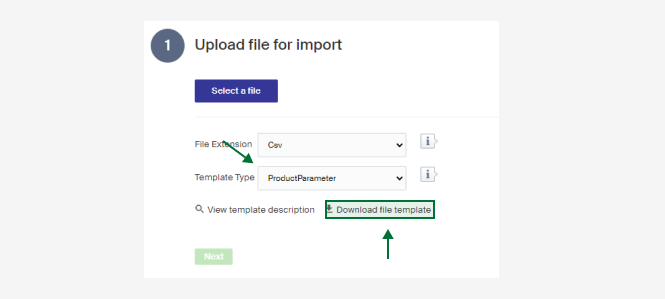
A description of the columns follows. There is also a short description in Merchant Center under View template description.
| Column | Description |
|---|---|
| ProductId | Id of the product to import the parameters to. |
| ProductName | The product's name. Mandatory if the Id is not filled in. Can be left empty if there is an Id. |
| ParameterGroup | Name of the parameter group, as set in the Group Name field on the parameter group. |
| ParameterName | Name of the parameter (the field name on a parameter). |
| Value | The value you want the product to have for its parameter. Must match an existing value if the parameter is a picker or multi-picker type. If the value includes a decimal, separate it with a point, for example 2.2 (not 2,2). |
Once you click Next, match the columns to each field. In this example, the column Namn needs to be dragged to name.
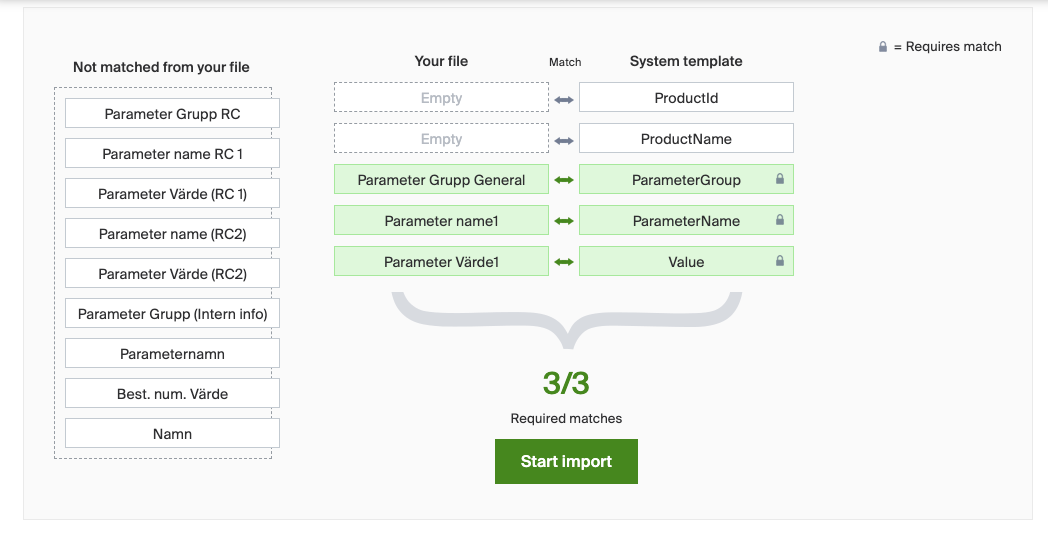
When you have matched all the columns, click Start import. Your products are then enriched with parameters. Repeat the process to add the next parameter.
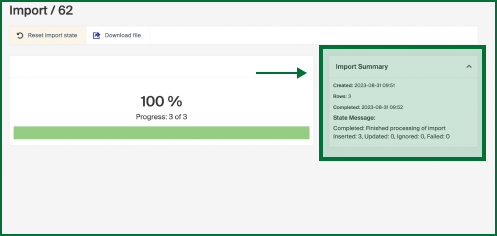
When the import is finished, you get a summary. If all products were imported correctly, it says Inserted or Updated. If something went wrong, it shows how many products were Ignored or Failed.