Import Templates
Import template for product parameters
Apply parameters and parameter values to products via the import tool. Requires that parameter groups and their parameters are created first.
Key features
- Apply parameters and parameter values to products via import
- Requires parameter groups and their parameters to be created first
Quick guide
- Go to the Import Tool in the menu and click New.
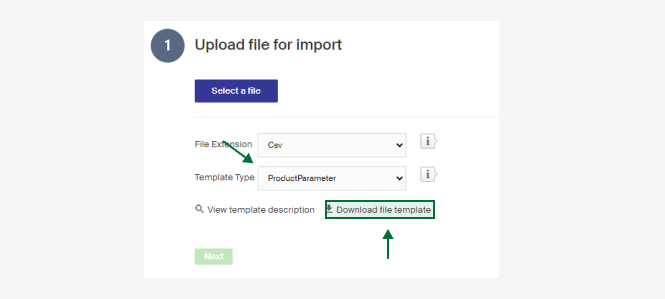
- In the Template type dropdown, select Product Parameters.
- Click Download file template.
Download the import template by going to the Import Tool in the menu, clicking New, choosing Product Parameters in the Template type dropdown, and clicking Download file template.
A description of the columns follows. There is also a short description in Merchant Center under View template description.
| Column | Description |
|---|---|
| ProductId | Id of the product to import the parameters to. |
| ProductName | The product's name. Mandatory if the Id is not filled in. Can be left empty if there is an Id. |
| ParameterGroup | Name of the parameter group, as set in the Group Name field on the parameter group. |
| ParameterName | Name of the parameter (the field name on a parameter). |
| Value | The value you want the product to have for its parameter. Must match an existing value if the parameter is a picker or multi-picker type. |
For the full import walkthrough, see Import parameters.