Handle locked orders
Key features
- Find and investigate orders flagged as Pending - Locked
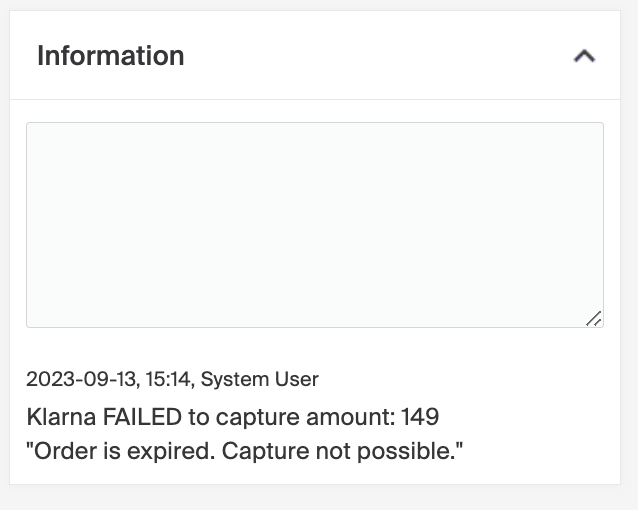
- See why each order was locked in the comment column and information log
- Unlock and handle an order, or permanently lock it to cancel
Quick guide
- Go to Pending - Locked in Geins Warehouse (WMS).
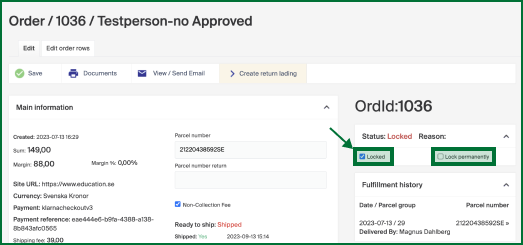
- Open an order to investigate, the Locked checkbox is checked.
- Uncheck Locked and click Save to handle it normally, or check Permanently locked to cancel it.
When an order gets locked, it could be for several reasons, perhaps the payment method failed or some postal information is inaccurate. These orders are flagged in Geins Warehouse (WMS) as Pending - Locked.
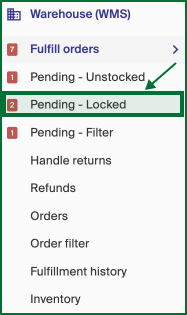
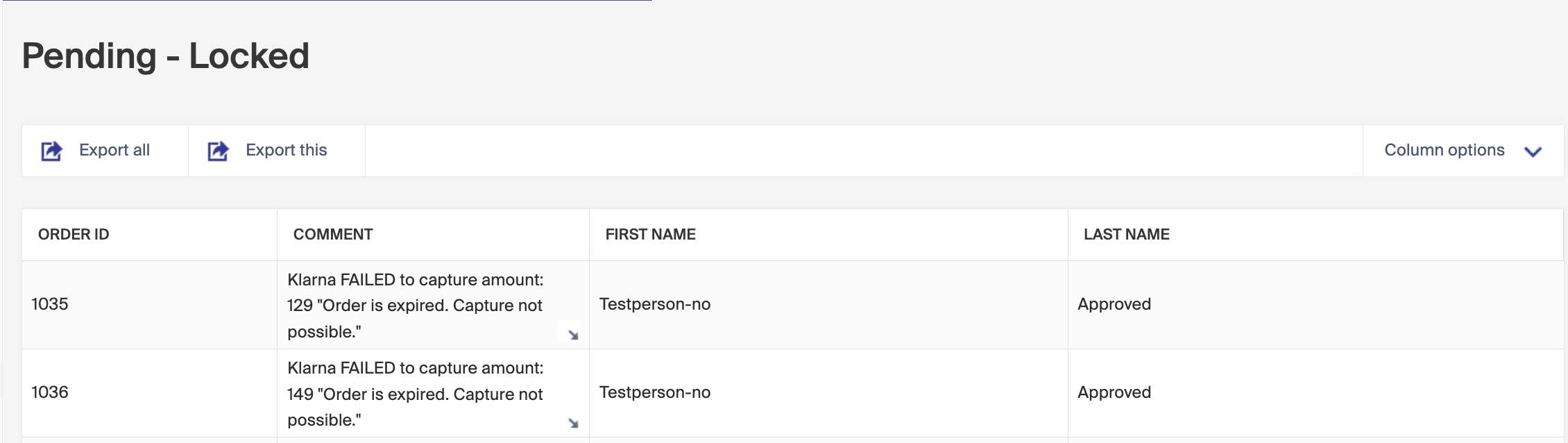
You'll find a list of orders flagged as locked, and you can handle and investigate them one by one. A comment column gives a short summary of what might have gone wrong.
Once you've chosen which order to investigate, you'll see that the Locked checkbox is checked. You can either uncheck the box and click Save to handle the order as normal, or check the Permanently locked checkbox to cancel the order.
At the bottom of the screen you'll find an Information box with a log of why the order was locked.
How to Adjust an Order After Fulfillment Has Started
If you need to adjust an order after fulfillment has already started, follow the steps below.
Remove individual orders from a delivery
Sometimes you need to remove a specific order from a delivery, for example if the customer regrets their choice. After using the report function, open the order, tick Lock permanently, and save to cancel it.