Deliver orders in a batch
Key features
- Deliver many orders at once in a single batch
- Select which orders to include by market, shipping method, date, and more
- Download a combined pick list and shipping documents for the whole batch
Quick guide
- Go to Warehouse (WMS) and click Fulfill orders.
- Click Deliver orders, then choose which orders to include.
- Click Deliver to start the delivery.
- Download the pick list (Item list) and shipping documents (Documents).
- Pack the orders, then click Deliver to complete.
To print labels you need a laser printer with a full duplex module and the correct printing paper. The shipping label layout is based on a three-part, double-sided label paper.
Start the batch
Go to Warehouse (WMS) and click Fulfill orders. The list shows orders that haven't been sent out yet. Click Deliver orders, you make your order selection in the next step.

Select which orders to include
Choose which orders to deliver using the options below.
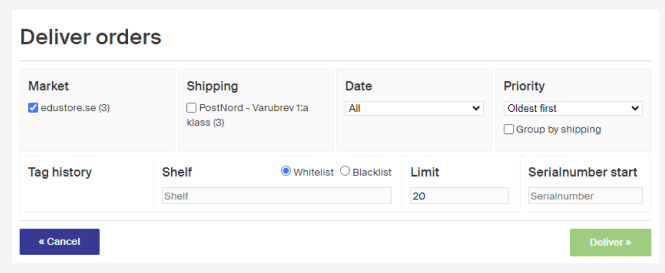
| Option | Description |
|---|---|
| Market | Which market or markets to deliver orders from. |
| Shipping | Which shipping method or methods the orders must have set. Must be chosen. |
| Date | Deliver orders from a specific date. The list contains dates with placed orders that can't be sent out yet. Retrieve existing is the default. |
| Priority | The order in which orders are retrieved. Oldest first is the default. For example, if you have a large number of orders and retrieve 20 at a time, they're retrieved by this priority. Group by shipping, if ticked, orders the pick list by shipping method. |
| Tag History | Saves and shows earlier shelf spaces you specified as black- or whitelisted. |
| Shelf | Pick more effectively by including or excluding orders with products on a specific shelf in the warehouse. For example, if part of your assortment is in a distant part of the warehouse, you can exclude those orders from deliveries and deliver them in their own batch. |
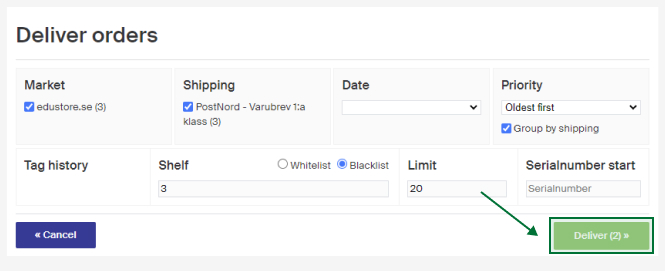
Use the shelf filters to narrow the batch by warehouse location:
- Blacklist removes orders containing products on specific shelf spaces (comma-separate to list several).
- Whitelist includes only orders containing products on specific shelf spaces (comma-separate to list several).
| Option | Description |
|---|---|
| Limit | The maximum number of orders that can be included in the delivery. |
| Serial number start | Every order in the delivery is assigned a serial number, which can represent, for example, a compartment in a pack wagon. Enter the serial number the delivery should start with. By default, the last number from the latest ongoing delivery + 1 is used. |
When you've made your selection, click Deliver to start the delivery. The number in parentheses on the button shows how many orders will be included.
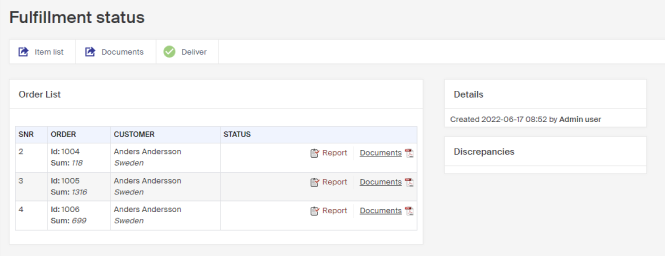
Once each order is processed, the documents are available to complete the delivery. If an order can't be completed for any reason, it's removed from the delivery, you'll see a summary in the Discrepancies box. Read more about error messages and deviations. To edit or remove an individual order from a delivery, see Remove individual orders from a delivery.
Complete the delivery
- Download the pick list by clicking Item list. Products are sorted by shelf space, and any order you removed is crossed out.
- Download the shipping documents by clicking Documents in the top bar. They contain shipping labels and packing slips for every order, and can also include return labels and return slips, depending on how the document is configured. To get documents for a single order, click Documents on that order's row instead.
- Print the PDF, then complete each package by attaching the label and adding the delivery note.
- When the packages are ready, click Deliver. The customers are charged and an order confirmation email is sent automatically, letting them know their order is on its way.

The delivery is now made and the packages are ready to be sent.
Deliver a single order
You can deliver orders in a batch, but it also works well to deliver a single order at a time, as described below.
Deliver the bulk split shipment (pallet booking)
When delivering bulk shipments with a consolidated customs invoice internationally, there's a feature in Merchant Center called Bulk Shipments.