Deliver the bulk split shipment (pallet booking)
Key features
- Book one or several delivered batches into a consolidated bulk shipment
- Share documents across the shipment: one pallet label, a consolidated customs declaration, and a waybill
- Designed for international bulk shipments with a consolidated customs invoice
Quick guide
- Go to Warehouse (WMS) and click Bulk shipments.
- Click Create bulk shipment.
- Select the batches to include, then click Create bulk shipment again.
- Download the shared documents from the last column in the list.
This feature requires specific services configured in nShift, and the Bulk Shipments feature activated in Merchant Center with special configuration.
Bulk Shipment lets you book one or several delivered batches into a consolidated bulk shipment, which then has shared shipping documents: one pallet label, a consolidated customs declaration, and a waybill.
Conditions for batches to be included
- All orders in the batch must be addressed to the same recipient country.
- All shipping methods in the batch must be valid for bulk shipping.
- Only a single common shipping provider can be included in the batch, for example only Bring or only Postnord.
All products included in the batches must have these fields filled in:
- Intrastat code
- Country of origin
Deliver the bulk shipment
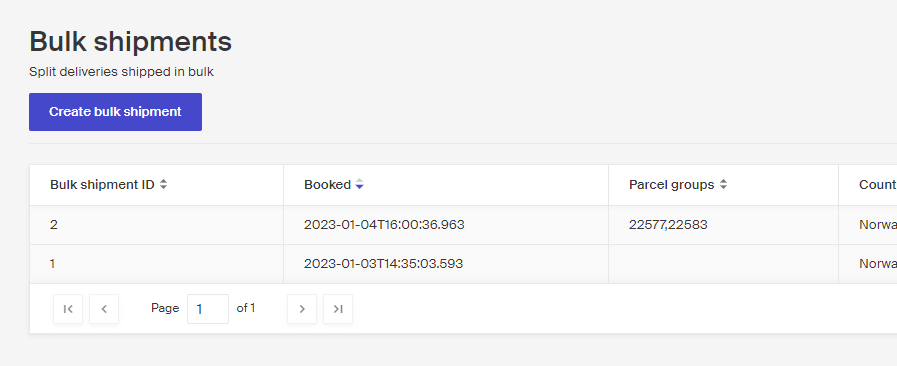
Go to Warehouse (WMS) and click Bulk shipments. Any existing bulk shipments are listed. Click Create bulk shipment to start, you make your batch selection in the next step.
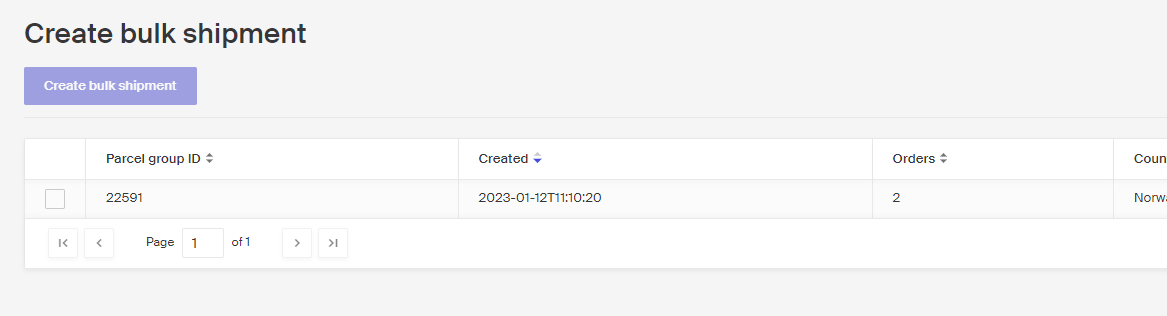
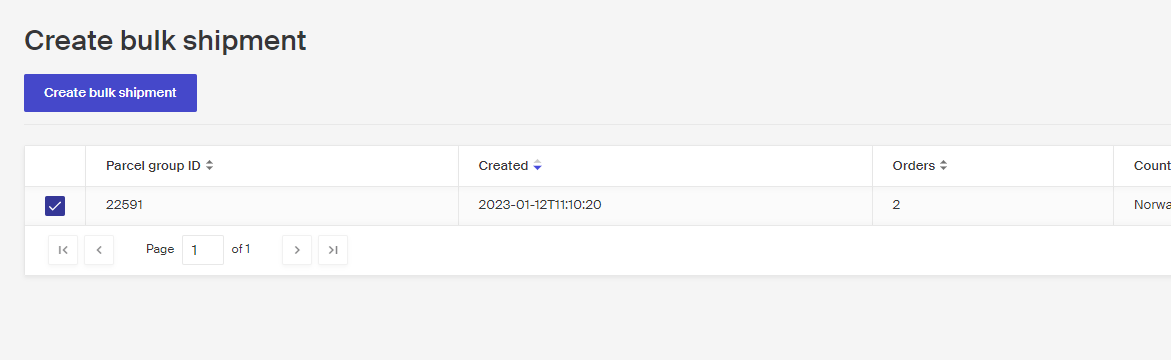
Select the batches to include by ticking the box in the first column. The example below has only one batch, but there could be more if multiple batches meeting the bulk conditions have been picked and delivered. Click Create bulk shipment to proceed.
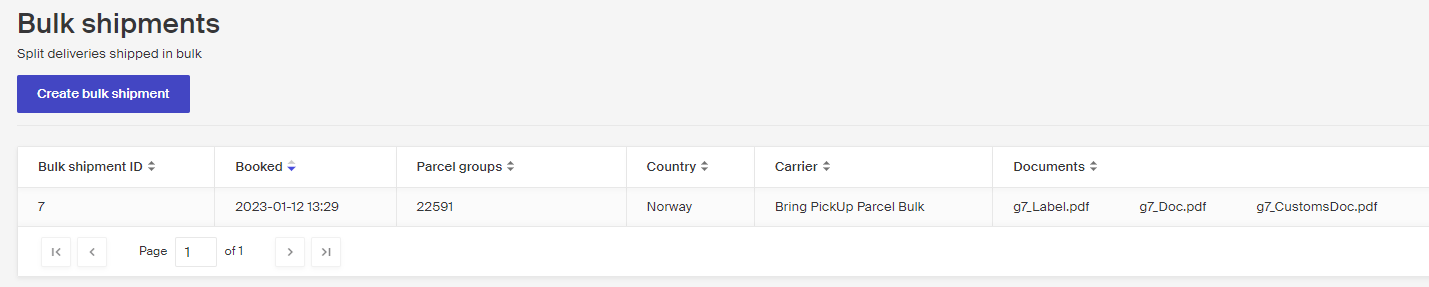
A new bulk shipment is created and you return to the list of bulk shipments, with the newly created one at the top. The documents are available for download in the last column.
Deliver orders in a batch
Deliver many orders at once in a single batch, selecting which orders to include and downloading shared documents for them.
Discrepancies during a delivery
During a delivery, an order may sometimes not be carried out for various reasons. You can see these in the Discrepancies box in the delivery view (Fulfillment status). Below is a summary of the discrepancies you may encounter, what they mean, and how to handle them.