Product Editing
Product pictures
How to upload product images, on one product or for multiple products with the import tool.
Key features
- Upload, reorder, deactivate, or delete product images on the product view
- Import images in batch with the import tool
- Configure the file-name format and image tags for advanced use
Quick guide
- Open the product and go to the Images box.
- Click Add and choose one or more images.
- Drag and drop to order them, then click Save.
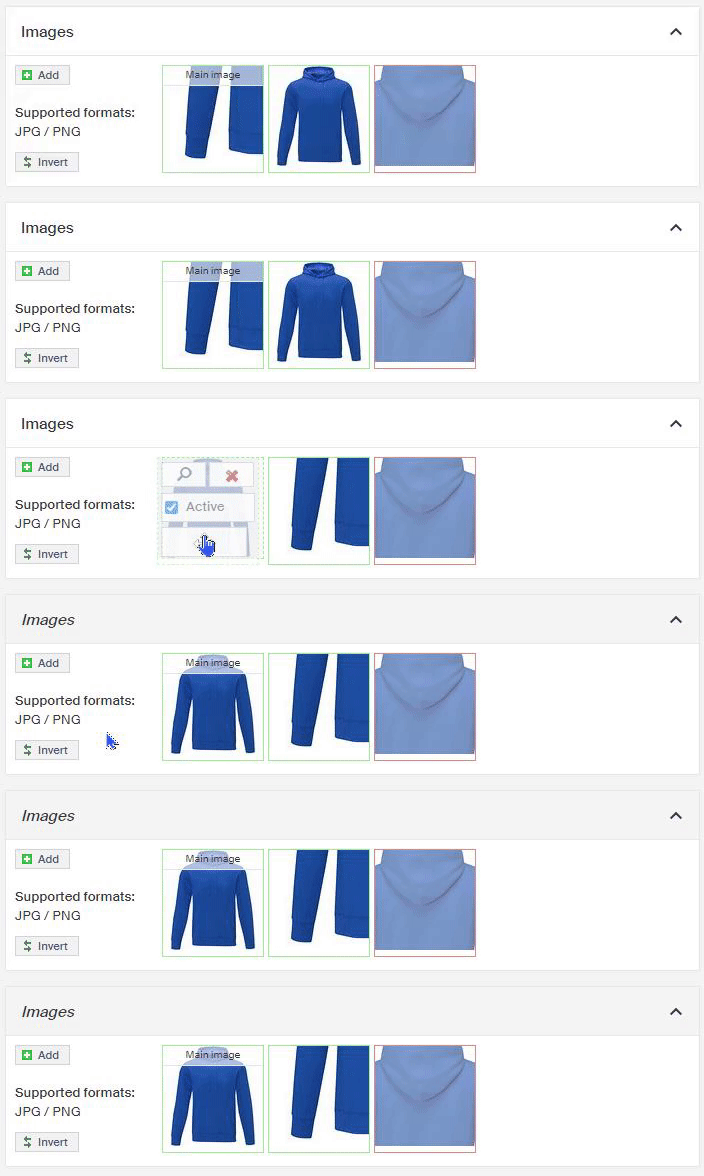
You find a product's pictures in the Images box on the product view, where you can upload pictures, change their order (drag & drop), and deactivate or delete them.
Guidelines
- The recommended upload format is .jpg (required for WebP converting).
- The proportions and measurements product pictures should have are controlled by the store's design. If you have questions, contact your project manager at your agency.
- Product pictures should have a resolution (width x height in pixels) at least twice as large as the biggest pictures used in the store. (Usually that's the magnified view on the product page, but this also depends on the store's design.)
Upload pictures on an individual product
- Open the specific product in Merchant Center.
- In the Images box, click Add and choose one or more pictures to upload.
- Place the pictures in the order you want. The first picture (main image) is shown in listings.
- Click Save. The pictures appear in the store soon.
Import product pictures with the import tool
To import pictures via the import tool, the pictures must be uploaded somewhere they're available via a link.
- Click Import Tool in the left menu, then click New.
- If you have a file ready, upload it, choose the right file format and template type Product Images, and click Next.
- To use the import template first, open the Template type dropdown, choose Product Images, and click Download template file. See the picture import template article for field descriptions.
- When your file is ready, click Next.
- Make sure the columns are mapped correctly and click Start Import. Depending on how many pictures you import, this can take a while as pictures are automatically scaled to the needed sizes. You can let it run in the background while you work elsewhere in Merchant Center.
When the import is done, the pictures are in place on the products.
Settings and extended functionality
There are many settings and extended functions for product pictures. These may require specific configuration.
- Product picture file-name format , set up how product picture file names are built, useful for SEO optimization. The default format is trademark+productname.jpg. (Setting:
Product)Image Name Format - ImageTags , tag specific pictures on a product, for example to show a different main picture in listings depending on the category or grouping. Also needs to be configured in the store. (Feature toggle:
Product)Image Tags