Managing Product Items (Sizes) on a product with the import tool
Key features
- Add or update product items (sizes) in batch with the import tool
- Manage stock, shelf, article numbers, and more per item
- Items are matched by exact size text, so spelling matters to avoid duplicates
Quick guide
- Prepare an import file with at least the Id, Name, and Size columns.
- Go to the import tool and run a product import.
- Match the columns and start the import.
The product list contains individual product items where you can add sizes and manage stock. Each product always has at least one row, either a single row for items without sizes (like a water bottle or a book), or multiple rows for products with sizes (S, M, L, etc.).
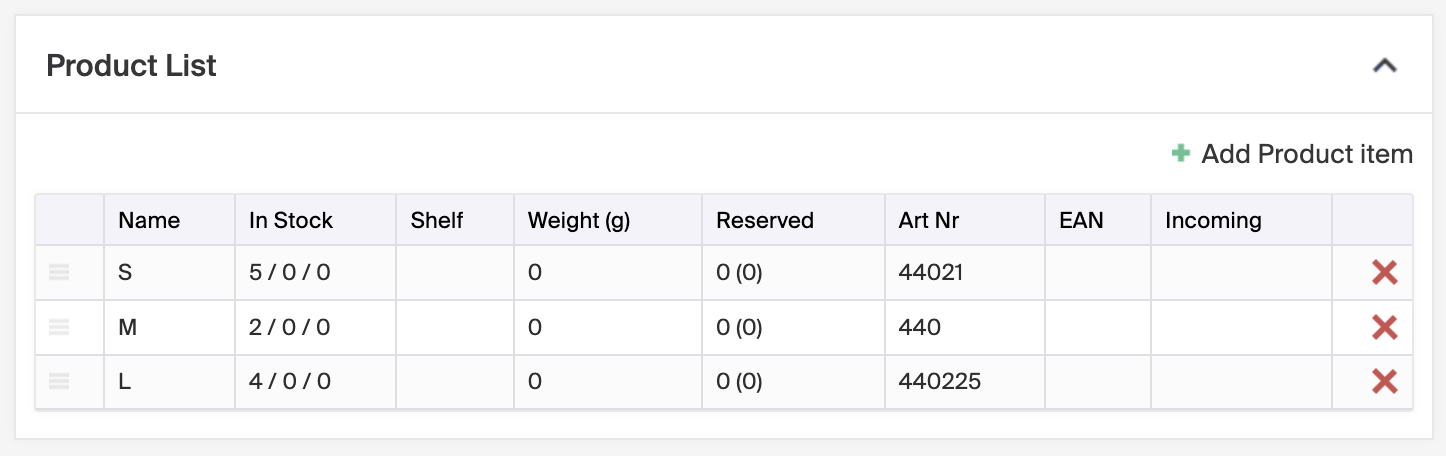
You can add or edit items directly in the product view, or use the import tool for batch updates. Learn more about general product import: Import products.
Key columns for importing or updating items
- Id, Name, Size , required for adding or updating items.
- Additional columns , Stock, Oversellable, StaticStock, Shelf, SizeExternalId, SizeArticleNumber, ItemWeight.
Creating new or updating existing products
When creating new products, if no value is entered in the Size column, an item with the size "one size" is added automatically. For existing products with specified sizes, make sure the size column is filled when updating fields like stock, shelf, or article number.
The system matches the value in the Size column exactly by text. For example, if the existing size is "one size" and you enter "One size" (with a capital O), the system creates a new row, so double-check spelling to avoid duplicates.
For a full list of product import columns, see the Product import template. For more about product stock, see Product stock options.