Placing publish date
Key features
- Set a future publish date so a product goes live automatically
- Prepare assortments without manually activating each product
- See publish status in the product list
Quick guide
- Open the product and check it as active.
- Click Set specific publication date and pick a date.
- Click Save.
Adding a publish date makes a product visible in your store from 00:01 on that day. This lets you prepare assortments for sale without manually activating each product, for example when releasing new collections.
- Open the product you want to publish and check it as active.
- Click Set specific publication date and use the date picker to choose when the product becomes visible and purchasable.
- Click Save.
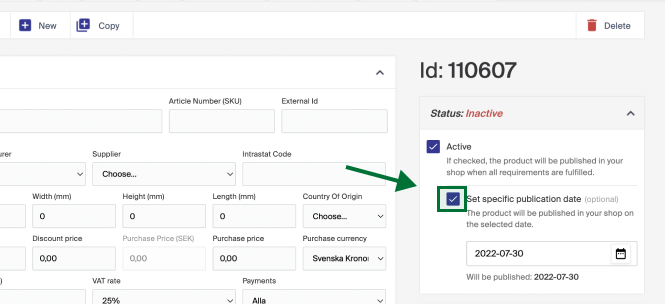
For the product to be visible, make sure all publication requirements are met. If you have specific Publication requirements configured, they may affect your publishing process.
Set a publish date on an already active product
If you click Save on a product with Active checked, you can no longer set a date on it, active products count as products you want visible and for sale. To set a later date, inactivate the product, save, and then set the date.
Status descriptions
| Status | Description |
|---|---|
| Not published | The product is not published in the store. |
| Published: n/a | Active product that's published but missing date information. Can happen for products created in earlier imports. |
| Published: 2021-01-01 | The product was published for the first time in the store on 2021-01-01. |
Publish date in the product list
You can see whether and when a product is published in the product list (Products), via the Published and Publication date columns. If you don't see them, enable them in column options.