Customer Management
Find a customer in Merchant Center
Two fast ways to find the right customer in Merchant Center, using the main search or by filtering the customer list.
Key features
- Find customers quickly from the main search
- Filter and search the customer list by column
- Choose which columns are visible in the list
Quick guide
- In the main search, enter the customer's name, Id, or email address.
- Click Customers to narrow the search to customers.
Search in the main search
In the main search in Merchant Center, enter the customer's name, Id, or email address to quickly find them.
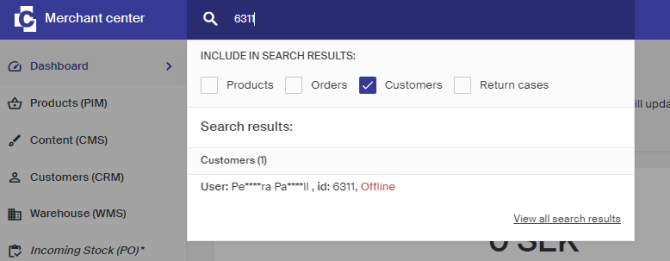
Click Customers for the most effective search.
Filter the customer list
- Go to Customers (CRM) > Customers in the left menu.
- Right-click a column heading to filter it. For example, right-click the Email heading and enter the email to match. The list filters to the matching customer.
- Control which columns are visible via Column options at the top right of the list, where you can turn columns on and off.
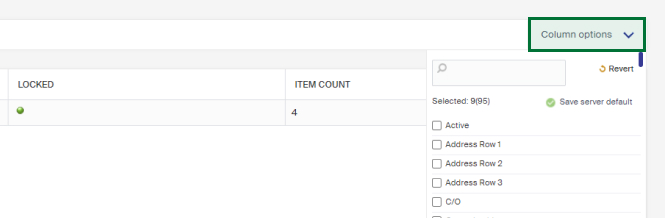
To reset all filtering, right-click any heading in the list and click Clear all filters.
Blacklist a customer
When a customer is set as blacklisted, purchases using that account or email address cannot be completed, and the email stays reserved by the blacklisted account.
Generate new password to customers
When a customer has forgotten their password, generate a new one for them through Merchant Center.