Widgets Library
Video widget
Place a video on the website, played directly on the site or in a modal/popup.
Key features
- Place a video on the website from Vimeo or YouTube
- Play the video directly on the page or in a modal/popup
- Set a custom placeholder image
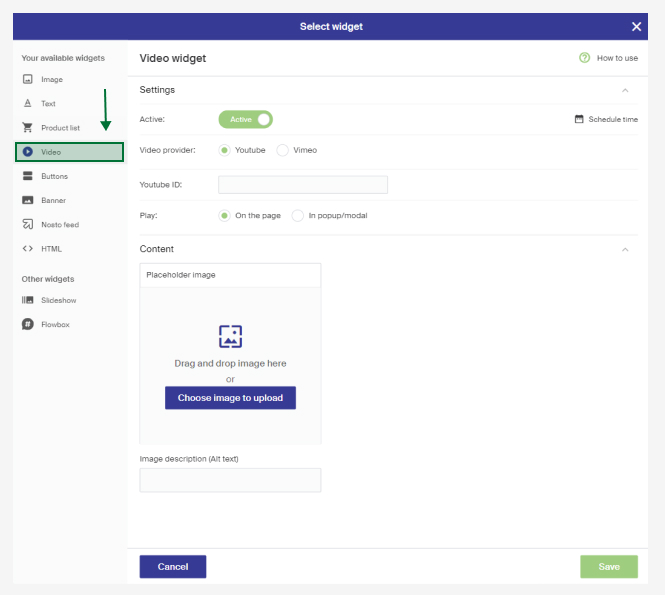
Settings
| Setting | Description |
|---|---|
| Video provider | The video provider you use. Vimeo and YouTube are supported. |
| YouTube ID / Vimeo ID | The ID for the video you want to play (see below). |
| Play | Whether the video plays directly on the page in its space, or opens in a popup/modal. |
| Placeholder image | Optionally upload a placeholder image for the video. If none is set, the widget uses the image from the video provider. A custom placeholder gives more flexibility and is recommended for page speed. Add alt text describing the image, which is read by search engines. |
YouTube ID is the last part of the video link. For example, in https://www.youtube.com/watch?v=12345, the ID is the part after = (12345). You can also click share on the YouTube video and copy the last part of the link, for example https://youtu.be/12345.
Vimeo ID: click share on the Vimeo video and copy the last part of the link. For example, in https://vimeo.com/25451551 the ID is 25451551.
Picture format
Recommended picture format is JPEG for best performance. GIFs are allowed but won't be optimized, so note the effect on page speed. Optimal picture widths depend on your page's design.
The picture's height is always dynamic. Make sure pictures in adjacent columns have the same height for the best result.