Widgets Library
Product list widget
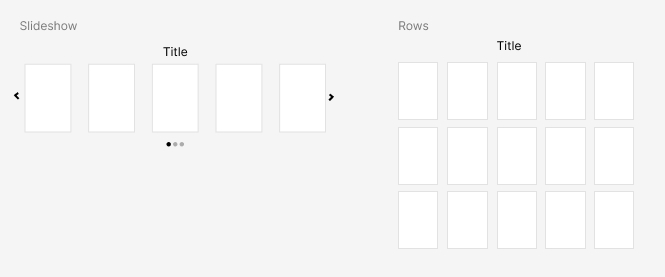
Place a block of products, shown as a horizontal slider or in rows. Available in the full-width content block (one column block).
Key features
- Place a block of products, as a horizontal slider or in rows
- Fetch products from a category, brand, or campaign, or choose them manually
- Show products dynamically based on a logged-in user's latest viewed or favorites
- Available in the full-width content block (one column block)
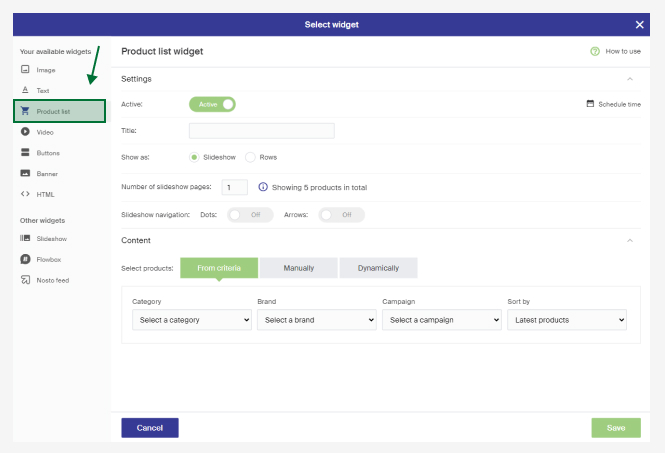
Settings
| Setting | Description |
|---|---|
| Title | The heading shown above the products. |
| Show as | How the product list is shown, such as a slideshow or in rows. |
| Limit number of rows | For rows, choose whether to limit the number of rows. If set to No, all products from your selection are fetched, shown as rows with a Show more button after a number of rows. |
| Number of rows | How many rows are shown (if Limit number of rows is set to Yes). |
| Slideshow navigation | Choose dots, arrows, or both to navigate the slideshow. |
How many products are fetched per page is controlled by how the store is configured.
Content
Choose which products to show:
| Source | Description |
|---|---|
| From criteria | Fetch products from a category, brand, or campaign, and set the order in the Sort by dropdown. If no criteria is selected, all products are shown, sorted by the Sort by option (for example, latest products). The campaign dropdown appears if you have cart campaigns or product price campaigns created. |
| Manually | Choose products manually. Search for the ones you want and order them by drag and drop. |
| Dynamically | Show products based on a logged-in user's latest viewed or favorites. |