Package Configurator (BETA)
Key features
- Create product packages (bundles) in Products (PIM)
- Group products into categories within a package, with optional and default choices
- Package price reflects the lowest possible sale price; stock follows the lowest-stock included product
Quick guide
- Go to Products (PIM) and click New.
- Give the product a Name and click Save.
- Click Convert to package.
- Click Configure package to add products.
- Add and configure the products, then click Save.
Create a package
To create a product package, go to Products (PIM) and click New. This product is the container that includes the package products and is the one shown in categories and so on in the webshop. When a package is purchased, the order rows include the products separately, the package isn't a single item in the order.
- Give the product a Name.
- Add a name in the name field of the product's items list. It can be a "-", for example. This is only needed to create the product.
- Click Save.
- Click Convert to package.
Now the fields relevant for the package remain. Here you give the package its product information, upload images, and so on.
- Price , the price shown corresponds to the lowest price the package can be sold for. For example, if one product is 100 kr and another is 50 kr, the price shows 150 kr. If the 50 kr product is optional, the price shows 100 kr.
- Stock , a package's stock is based on the included product with the lowest available stock.
Click Configure package to add the products the package should include, then click Add category.
A category can contain a single product or a collection of products, depending on how complex the package is. For example, a package with just a notebook and a pencil would have the notebook as one category and the pencil as another. For a simple bundle like this, the Category name, Description, and Optional fields often aren't relevant.
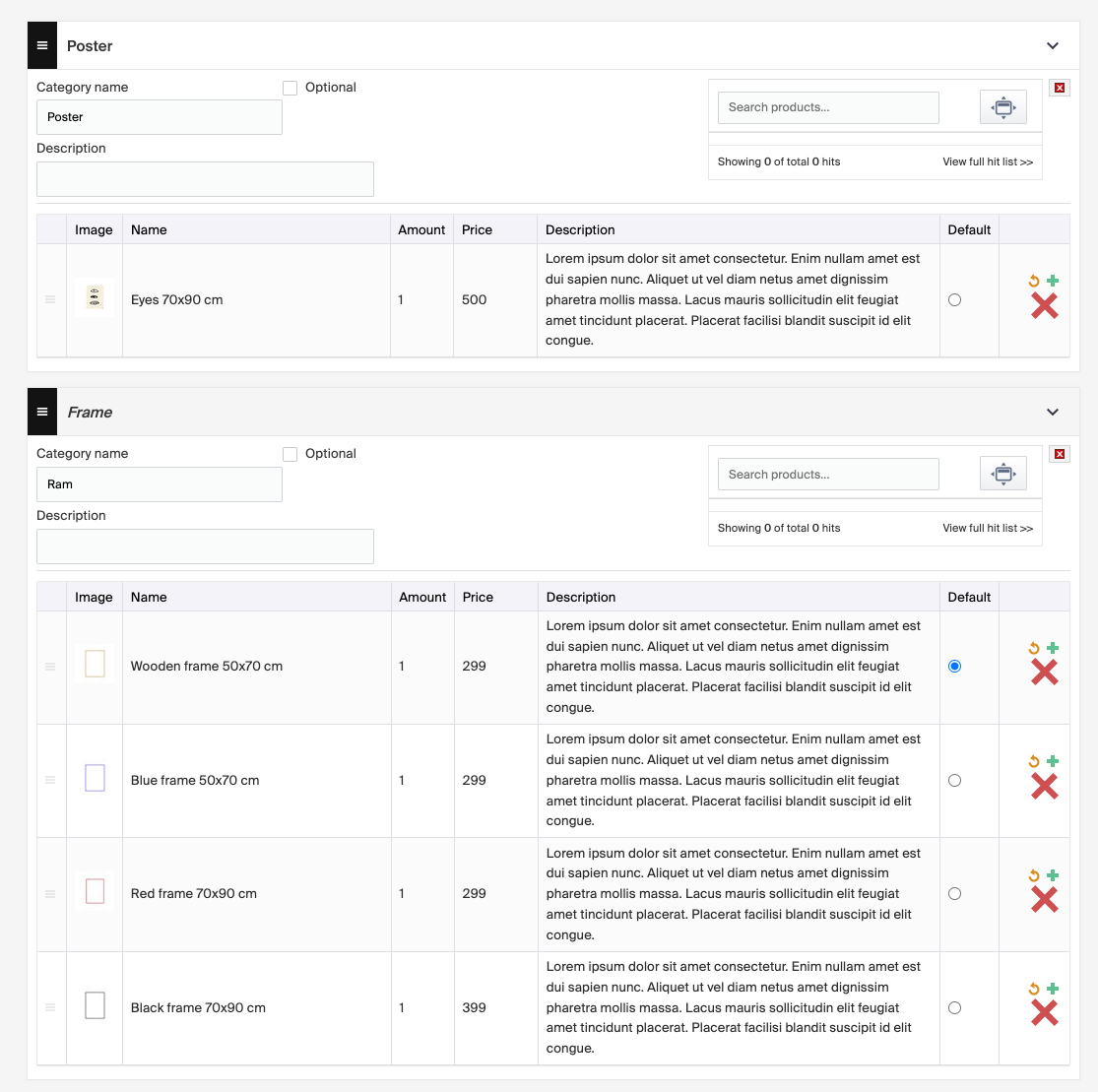
For a more advanced package where the customer chooses options, for example a poster and a frame where they pick which poster and which frame, the poster is one category and the frame another.
Description of fields on a category
Main fields
| Field | Description |
|---|---|
| Category name | The name of the product group. |
| Description | A describing text of the product group. |
| Optional | If checked, the customer isn't required to choose a product in this category. |
Product item fields
All these fields are filled automatically with information from the product. Name, Amount, Price, and Description can be changed.
| Field | Description |
|---|---|
| Image | The product's image. |
| Name | The product's name. |
| Amount | The number of items of this product to include. |
| Price | The price the item is sold for in this package. |
| Description | Describing text of the product. |
| Default | If checked, the item is preselected in a list. |
Click Save when you're done setting up your package.
Examples
An example of a package containing a poster and a frame, where you can choose the frame color:
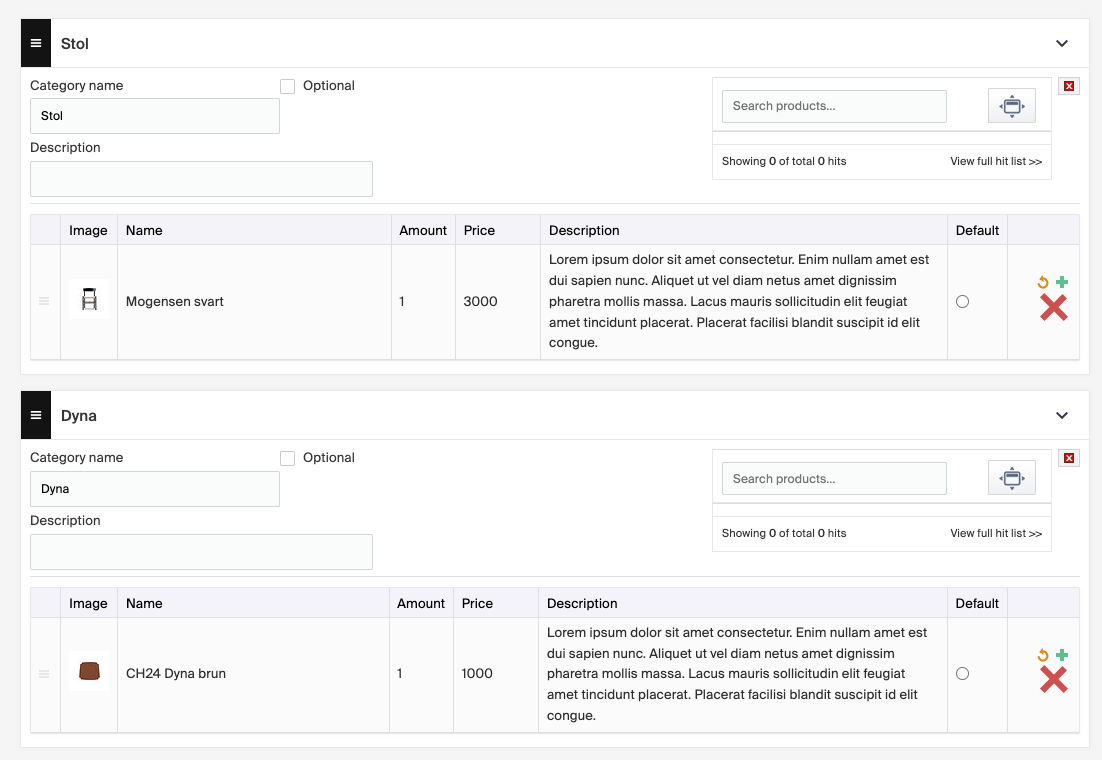
An example of a package containing a chair and a cushion:
Inventory history
Under the Inventory History tab, you can access a chronological record of how a product's inventory has changed, including when changes were made, how large they were, and who made them.
Using Tags on Product Images in Merchant Center
Tags on product images let you assign specific attributes to an image, making it easier to manage and display images dynamically. Each tag can contain up to 100 characters.