Order refunds
Key features
- Refund customers once a returned item is received
- Refund from the Handle Returns menu or directly on the order
- Restock items, refund part or all of the amount, and optionally refund the shipping fee
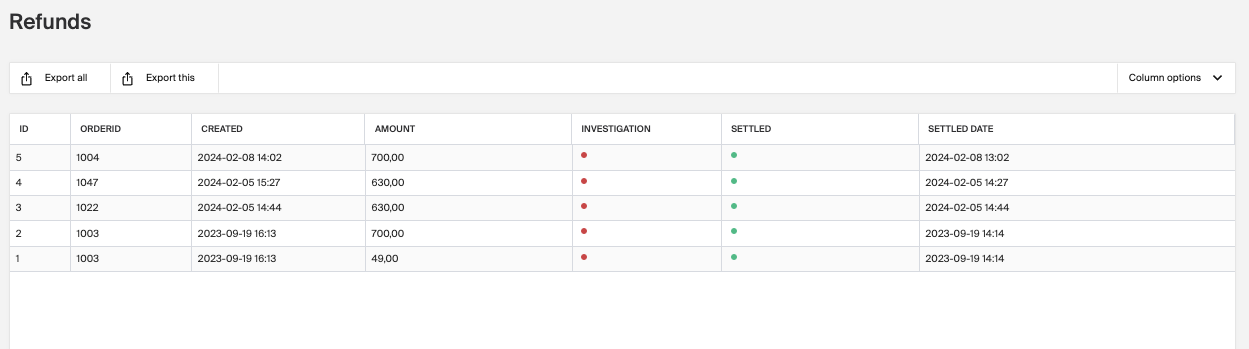
- Track refund status: settled (green dot) or manual settle required (red dot)
Quick guide
- Search for the order in the search bar.
- Select the returned item or items.
- To restock, tick Restock, then choose the refund option from the dropdown.
- Set the amount, optionally tick Refund Shipping Fee, and click Save.
You can process refunds for returned items in two ways: under the Handle Returns menu, or on the customer's order.
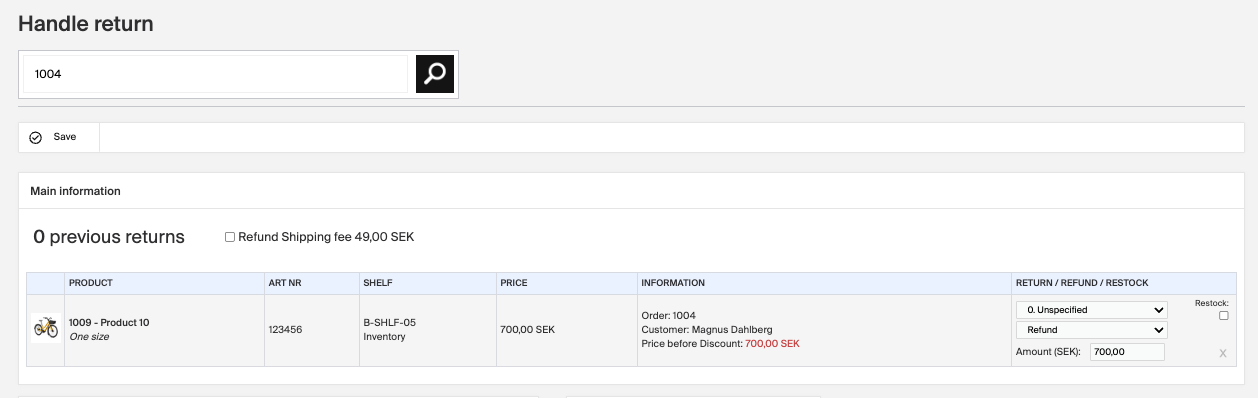
Refund a returned item
- Search for the order in the search bar to display all its items.
- Select the returned item or items. Customers often note the reason on the return slip, such as a regretted purchase or the size being too small.
- If the product isn't defective, tick Restock so it's available for the next customer.
- Choose the refund from the dropdown, then set the full amount or a suitable lower amount. Optionally tick Refund Shipping Fee to include the shipping cost.
- Click Save.
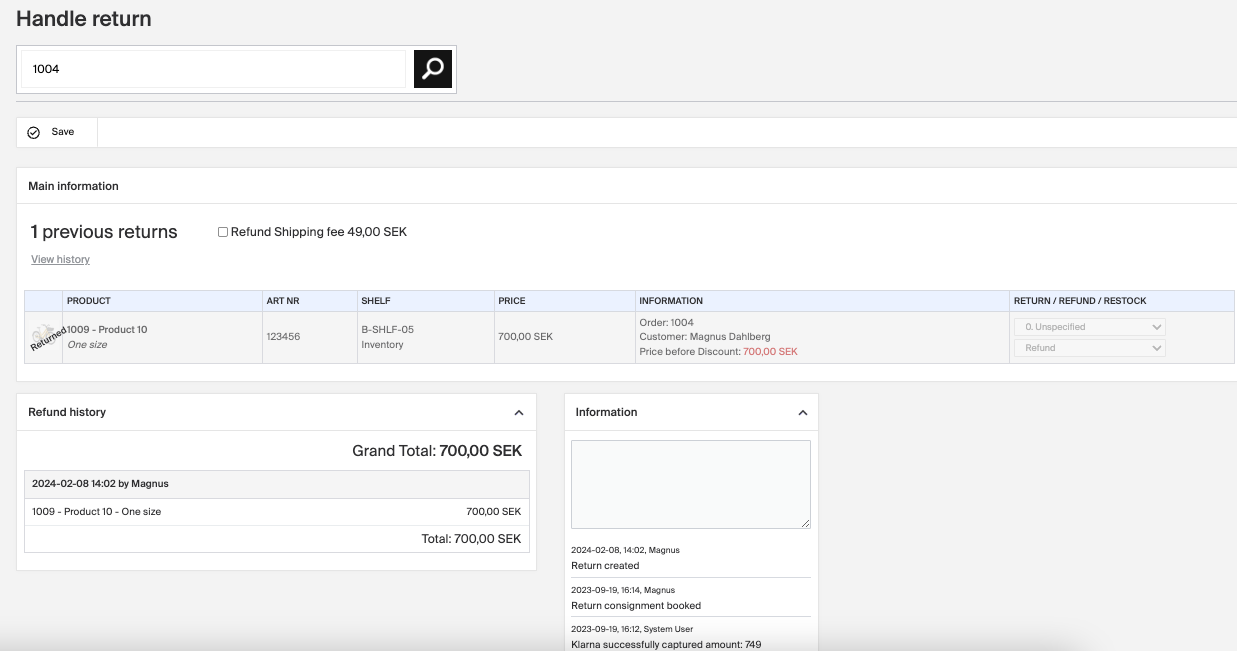
You'll get a detailed refund history and a log showing whether the payment provider has confirmed the refund.
Because the item was returned and the refund processed during return registration, the refund is settled automatically. A green dot under the Refund menu means it's settled.
Refund before the items are returned
You can also refund before receiving the items, directly on the order page under the Refund section:
- Click New refund.
- Enter the amount you'd like to refund, in the same currency as the order.
- Click Save.
These refunds get a red dot, meaning you still have to settle the payment manually.

Remove individual orders from a delivery
Sometimes you need to remove a specific order from a delivery, for example if the customer regrets their choice. After using the report function, open the order, tick Lock permanently, and save to cancel it.
Refunds information in the statistics views
You can find data on refunds in the Sales Demand and Revenue views.