General
How to add a new administrator in Merchant Center
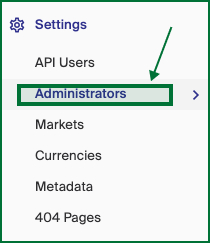
When you want to add a colleague as an administrator in Merchant Center, simply go to Settings > Administrators in the left menu.
Key features
- Add a colleague as an administrator in Merchant Center
- Set the new administrator's details and activate the account
- The new administrator sets their own password through a password reset
Quick guide
- Go to Settings > Administrators in the left menu.
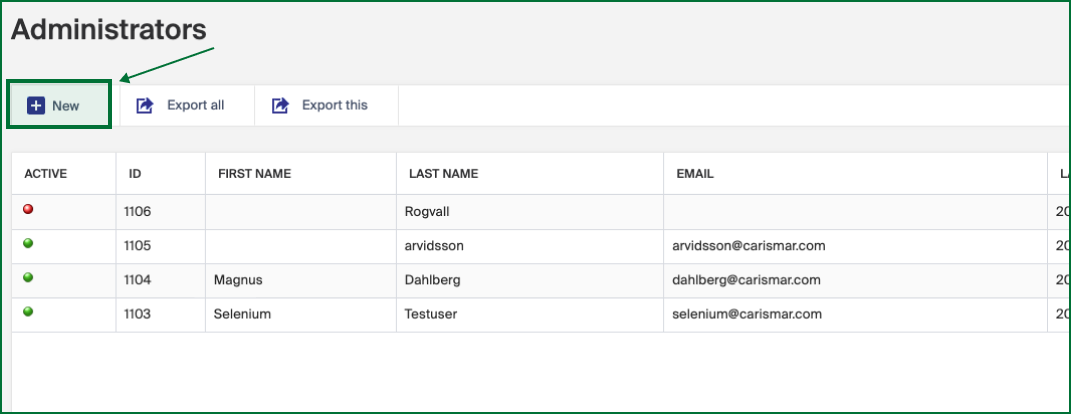
- Select New in the upper left corner.
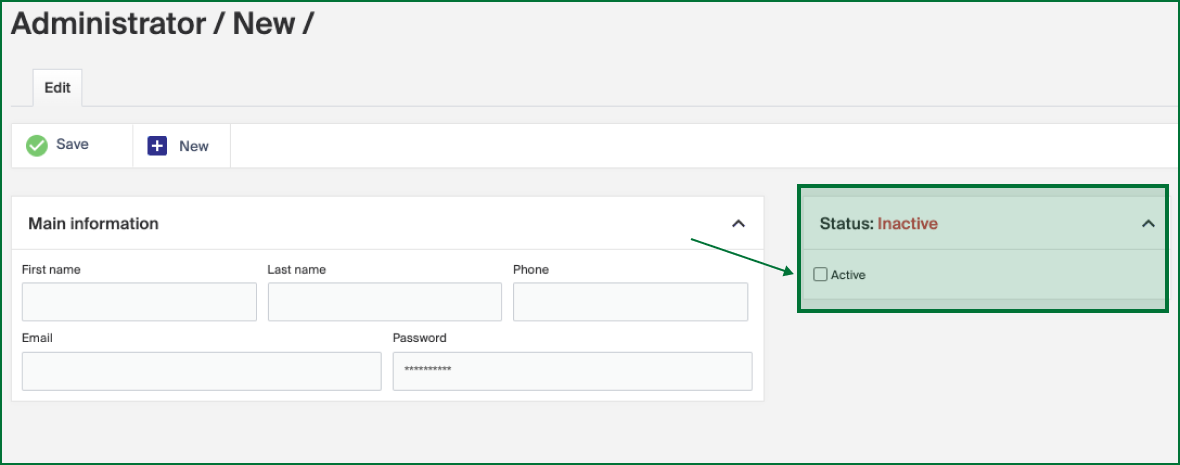
- Fill in the First name, Last name, Phone, and Email.
- Tick the Active checkbox and click Save.
- Ask the new administrator to open your Merchant Center URL, click Forgot your password?, and enter the email you used.
- They follow the link in the email to set a password, and can then log in.
Go to Settings > Administrators in the left menu.
Select New in the upper left corner.
Fill in the First name, Last name, Phone and Email for the user you want to add, then tick the checkbox for Active and click Save.
The new administrator now has to go to your Merchant Center URL and click on the Forgot your password? option and type in the email address which you entered in the previous step. This will generate an email with a link to reset their password.
When the user has typed in the new password twice, he or she is able to log in to Merchant Center.