Processing returns for bundled product promotions (3 for 2)
Key features
- Handle returns for orders with a bundled promotion, such as 3 for 2
- The campaign discount is divided across all products in the bundle
- Choose a return reason and refund method per product
- Optionally refund shipping, apply a return fee, or restock
Quick guide
- Go to Handle returns under Warehouse (WMS).
- Enter the order number and press Enter.
- Mark the returned row, then choose a return reason and refund method.
- Review the Return history summary.
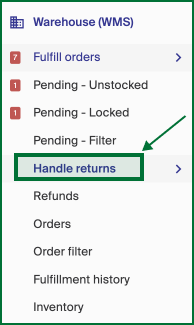
Go to Handle returns under Warehouse (WMS).
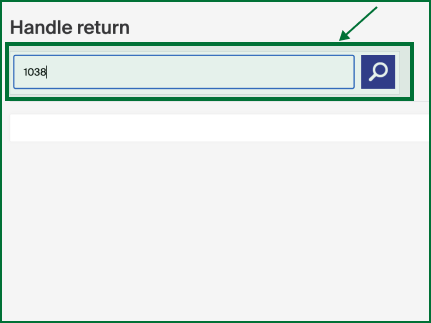
Enter the order number for the order you want to handle a return for and press Enter.
You will see the order rows and, under the Information column, the discount sum divided between all three products in the 3 for 2 campaign. In this example the discounted amount is 110,00 SEK, which gives all three products a discount of 36,66 SEK.
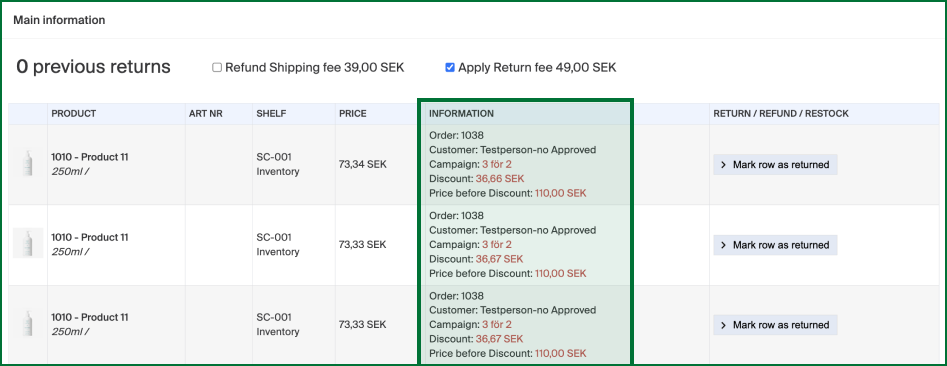
Under the Return/Refund/Restock column, use Mark row as returned, pick the product that has been returned, and click the button.
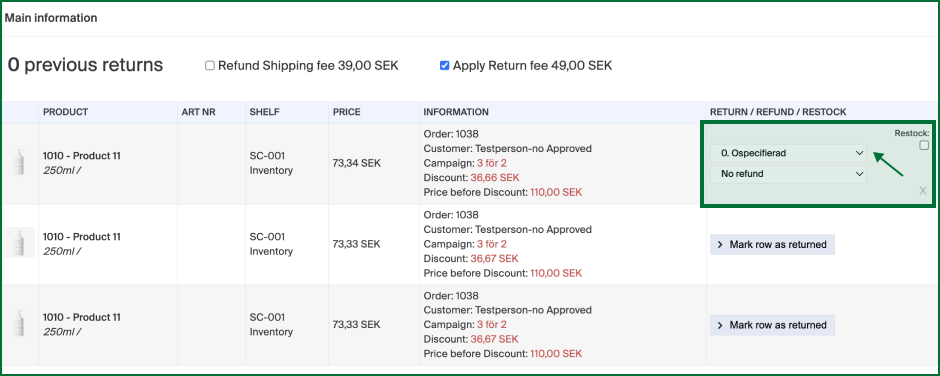
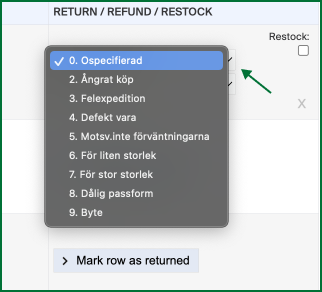
Start by clicking the first dropdown menu to specify the return reason for the product. Depending on your initial setup, the choices and their language can vary. These choices are also reflected on the Return lading sent to the customer prior to the return.
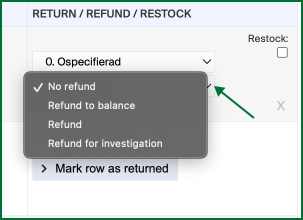
Once you have chosen the reason, you can choose whether to refund the product:
| Choice | Description |
|---|---|
| No refund | The customer is not entitled to a refund. |
| Refund to balance | Refund an amount to the customer's account for use on a future order. The customer needs to log in to the account to access the balance. |
| Refund | Refund the amount to the payment method used when placing the order. |
| Refund for investigation |
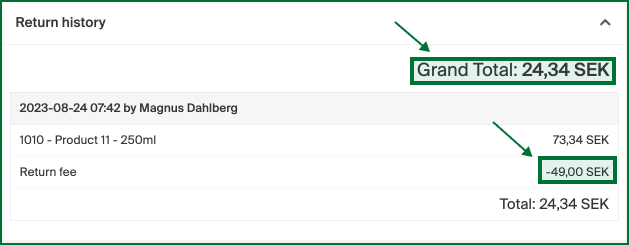
Once you have made your choices, you will see the new amount that will be refunded for the product. The discounted amount is deducted from the original price, in this example 110,00 SEK minus 36,66 SEK equals 73,34 SEK. Depending on the return reason, you can restock the product by ticking the Restock checkbox. The product is then available for sale in your store again.
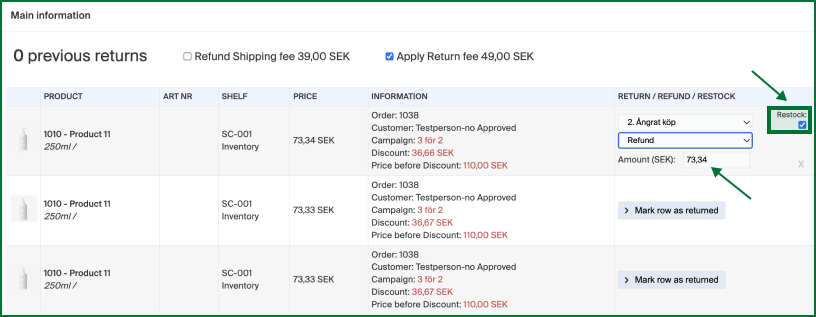
You can also choose to Refund Shipping fee, which adds the store's shipping fee to the refund amount, or Apply Return fee, which deducts a fee from the refund amount. Tick a checkbox if either applies. In this example a return fee has been applied.

When all is done, you get a Return history with a summary of the amount that will be refunded to the customer.