Product Parameters
Create parameters and parameter groups
How to create parameters and parameter groups that need to be in place to give products different characteristics and filtering attributes.
Key features
- Create parameter groups and parameters to give products characteristics and filtering attributes
- Choose a parameter type (Text, Number, Date and Time, Picker, Multi choice picker)
- Control filtering (NoFilter, MultiFilter, Range Filter) and whether values show on the product page
Quick guide
- Go to Products (PIM) > Parameters / Filters and click New.
- Name the parameter group, set it active, and click Save.
- Click Add Parameter to add parameters, choosing the type, filter, and show-on-site settings.
To customize the characteristics and filtering attributes of your products, create the parameter groups and parameters first. Once created, they're available in the product editing view.
Create a parameter group
- Go to Products (PIM) > Parameters / Filters and click New.
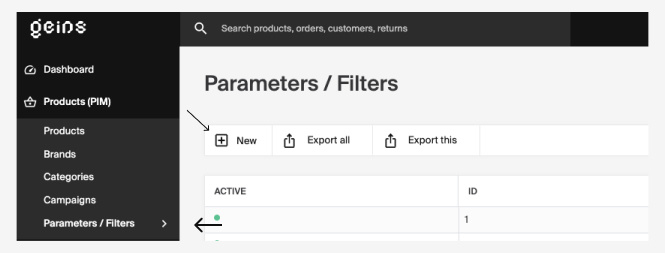
Here you create the parameter group and add the parameters you want.
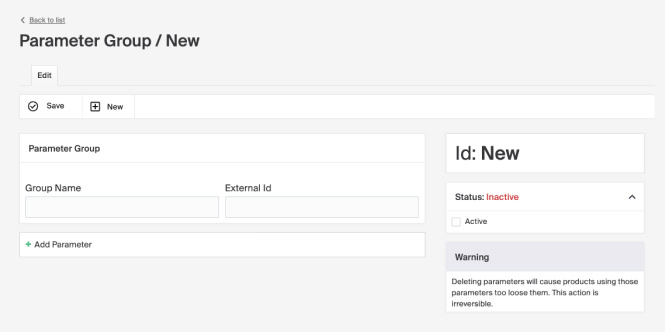
- Give the parameter group a name in the Group Name field. It's shown in Merchant Center and can appear in the store as a title on product specifications. (The External id field can usually be left empty in a base configuration.)
- Set the parameter group active and click Save to start adding parameters.
Add parameters to the group
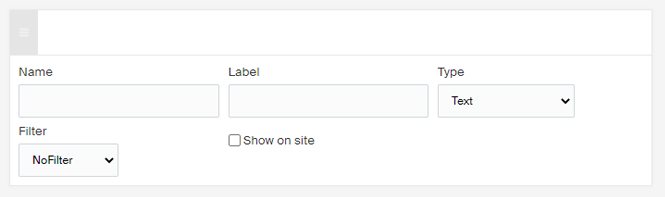
Click Add Parameter to start adding parameters to the group. There are different parameter types and filtering settings.
| Field | Description |
|---|---|
| Name | The name of the parameter, for example "Color". Shown in the store if the Label field isn't filled in. |
| Label | Lets you show a different name than Name in the store. Shown in the store if filled in. Usually the same as Name. |
| Type | Which type of parameter. Controls the editing type the parameter has in the product editing view. |
| Filter | Filter setting for the parameter. |
| Show on site | Controls whether the parameter is visible on your product page in the store. |
Parameter types
- Text , an empty box in the product view where you fill in the values yourself (can't be filtered on).
- Number , for numeric values.
- Date and Time , a date.
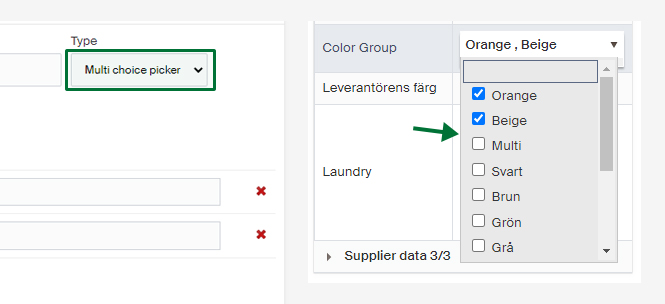
- Multi choice picker , a list in the product view with predefined values, like "red", "green", and "blue". The values are what you add when creating the parameter. Use this when you want more than one value.
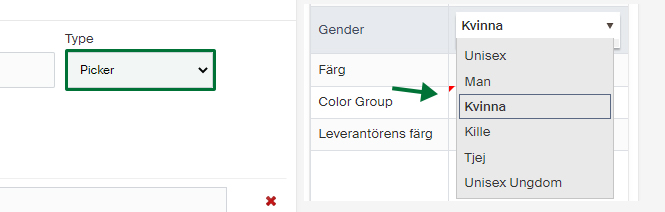
- Picker , a list with predefined values, like "1990", "2001", and "2022", where you can choose only one. Use this when a single value is appropriate.
Filter choices
- NoFilter , the parameter only appears as information on the product page. It doesn't show up in filter choices in product listings.
- MultiFilter , same as NoFilter, but the values can be used in a filter search. Choose this if you want the values to be filters in product listings.
- Range Filter , only works with "Number". Enables a slider to filter values.
Show on site
The Show on site checkbox controls whether the parameter values are shown on the product page in the store. If checked, the values are visible on the product page. Leave it empty if you only want the parameter as a filter in product listings, or for information used elsewhere without appearing on the product page.